Closing attendance

In order for employees to approve their attendance, their attendance must be closed for the given month.
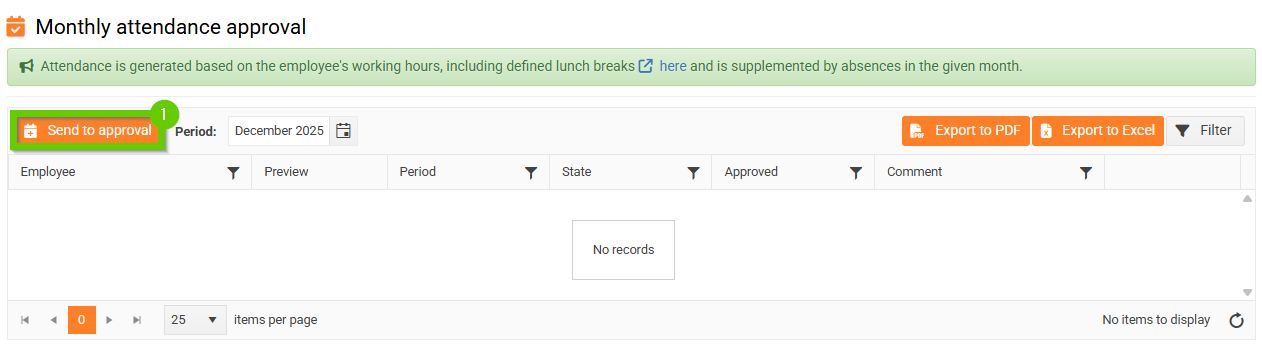
Attendance is closed by authorized employees in the main navigation menu Attendance/absence > Monthly attendance approval.
Procedure
- Click the Send to approval button.
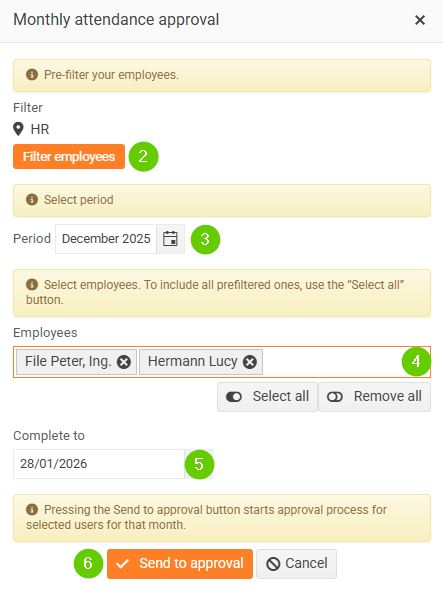
- In the displayed form, use the filter to select which group of employees you want to close attendance for.
- Select the period (month) for which you are closing attendance.
- You can further narrow down the pre-filtered selection of employees.
- Set a completion date.
- Click the Send to approval button.
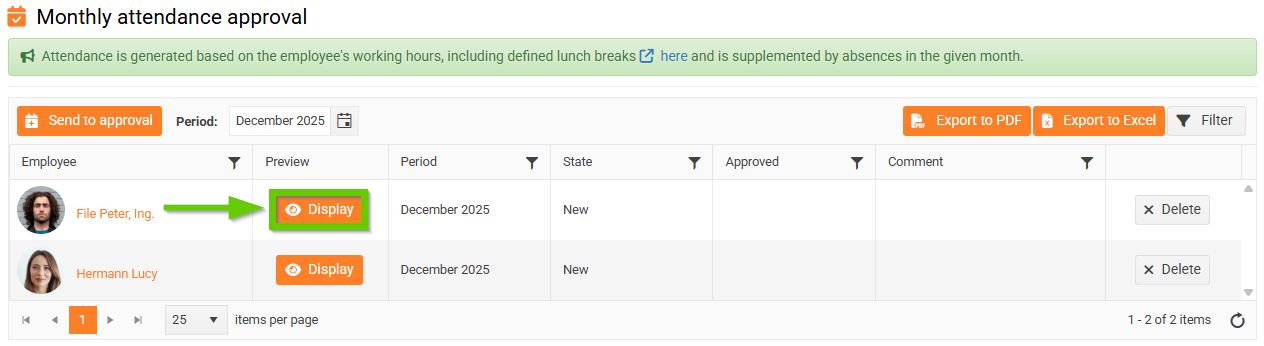
The system automatically creates attendance forms for selected employees and sends them to them for approval as a request.
You can find the generated attendance forms in the Monthly attendance approval overview under the Display button.
In the overview, you can also see whether the employee has already approved or rejected their attendance, in case they have any comments about it and request that the attendance be corrected.
In this case, adjust the lunch break settings in Configuration and then regenerate the attendance for the employee in question.
Correction of rejected attendance
If the employee has rejected attendance, the authorized employee will delete the rejected attendance record from the overview using the Delete button.
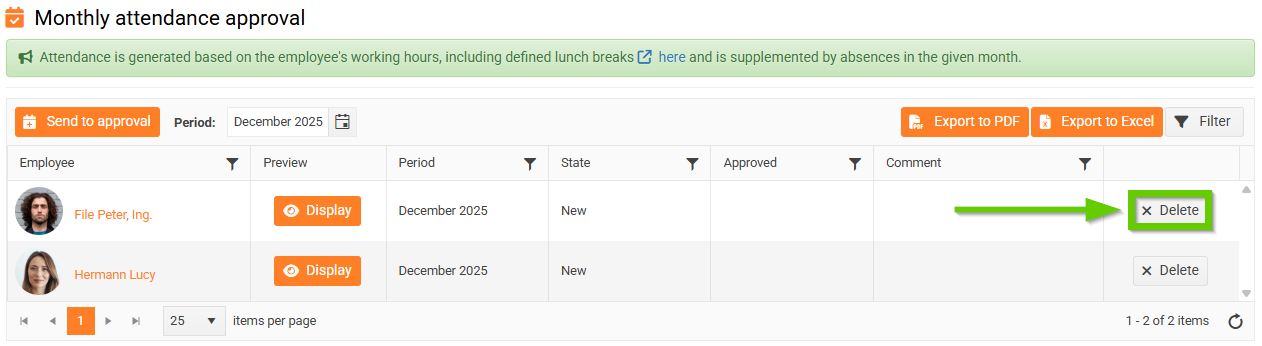
Then, they will edit the absence records as needed and close (generate) the attendance again according to the procedure above.
- the Start date is filled in on the Work Data tab and has a non-zero Schedule for at least part of the month.
- At least part of the monitored month is among active employees.
The original record must be deleted before closing the attendance again.
