Creating a new report

A new report can be added via the Report Management tab (Fig. 1).
The report structure is fixed.

(Fig. 1)
When creating a report, first select its type (Fig. 2):
- New employee report (Condition: The start date of new employees must fall within the filtered period.)
- Employee report at the end of the probationary period (Condition: The probationary period end date must fall within the filtered period.)
- Terminated employees report (Condition: The employee's departure date must fall within the filtered period.)
- Holiday report
- Birthday report (Condition: the month of the birth date must fall within the filtered period.)
- Payroll report
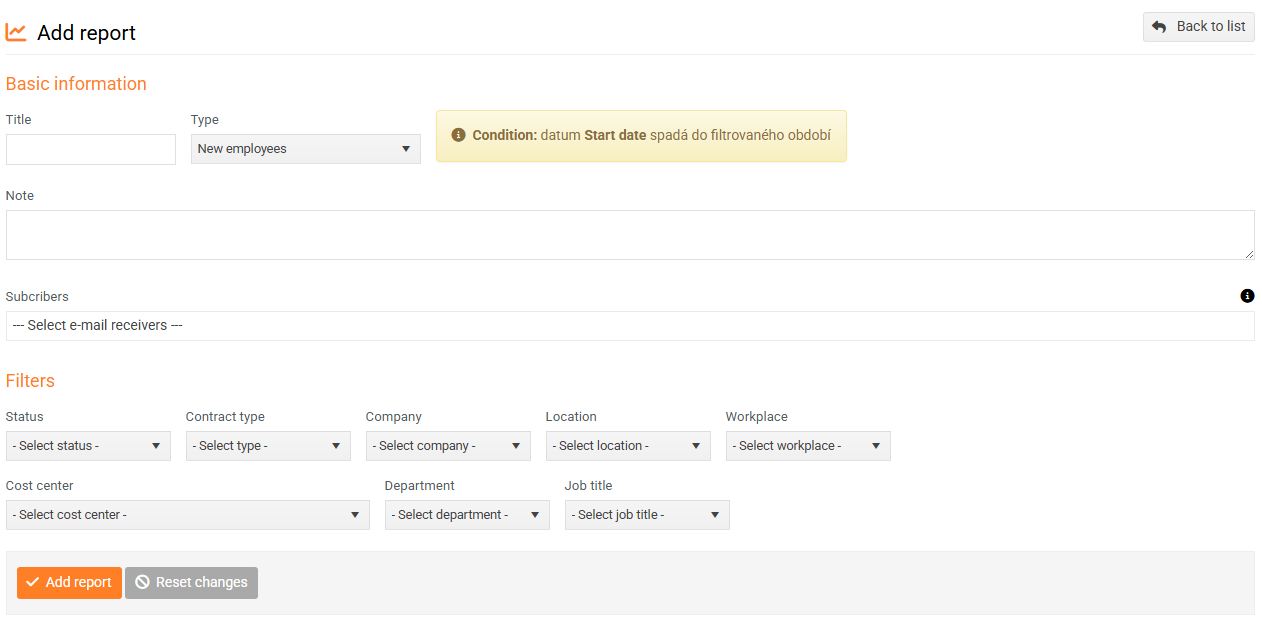
(Fig. 2)
Select subscribers who will be automatically notified when a new report is generated.
In the filters, it is possible to specify which group of employees will be included in the report. For example, if I include only employees working in HR positions in Brno in the Birthday report, the report will only cover those employees who have the relevant data filled in their employee profile in PINYA HR (Fig. 3).
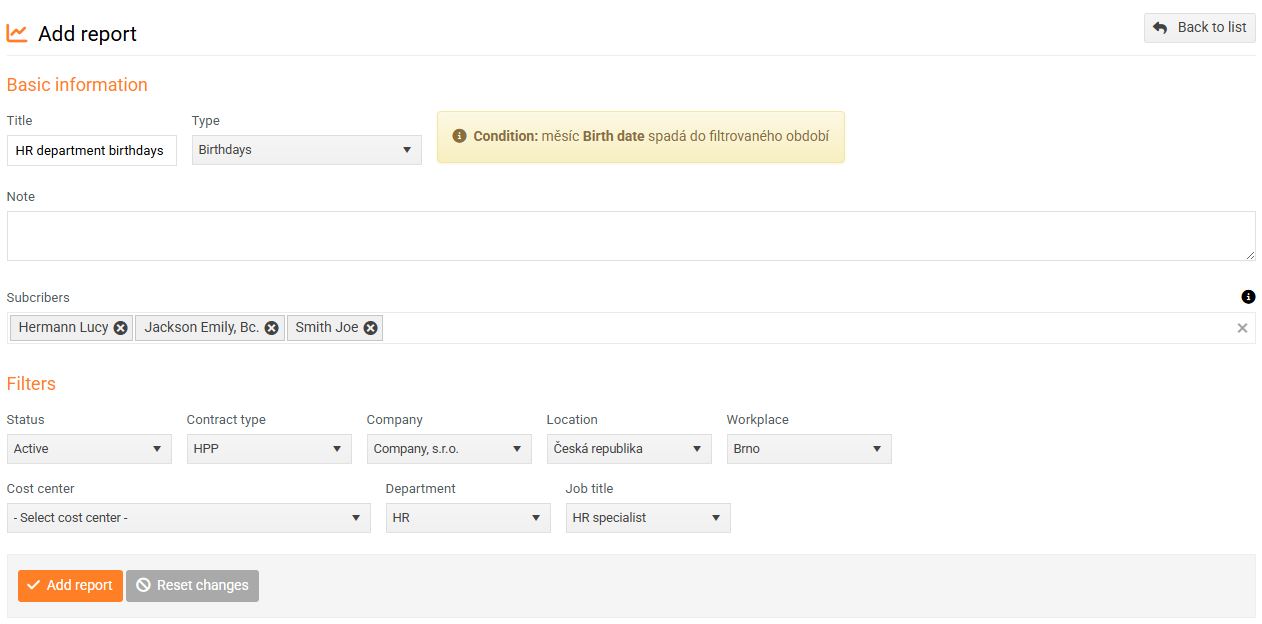
(Fig. 3)
Fill in all the required information and save the changes.
The number of reports created is not limited.
The Terminated Employees and New Employees reports are always generated on the first day of the month following the month being reported. For example, reporting on new employees joining in December will occur on January 1.
All other reports are generated on the first day of the reported month. For example, a report regarding HR employees' birthdays in May will be generated on May 1st.
