Approval during absence by a delegate

If you are on vacation and need to delegate approval to someone during your absence
In case of absence, you can designate a delegate to handle the requests on your behalf.
1. Application form from the perspective of the employee who selects the delegate and delegates requests to them
On the main panel, go to the Attendance/absence > My Attendance/absence tab.
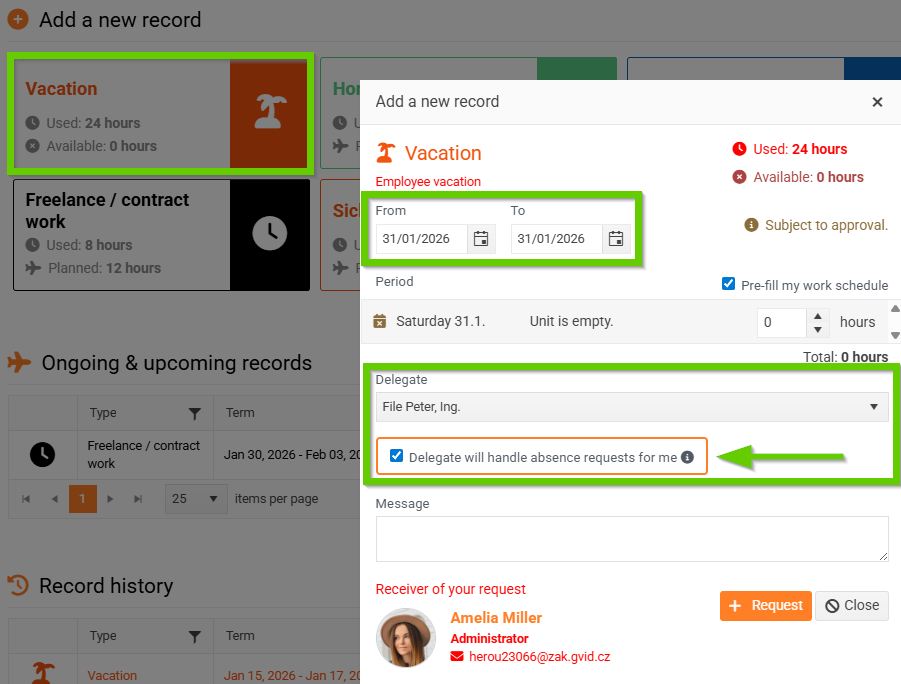
Here, select the absence type, for example Vacation, and click on it. A window will open in which you can enter the duration of the absence and select a delegate. The checkbox the delegate will handle absence requests for me will then be activated, which you must select.
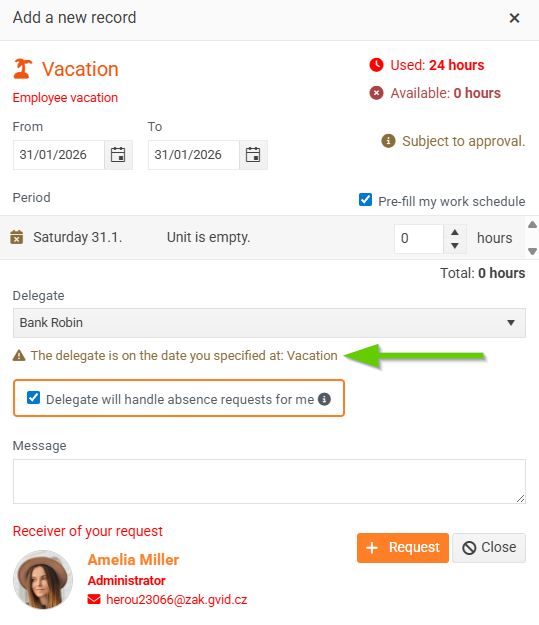
If the selected delegate is also absent at the selected time, the system will notify you.
Click the Request button. The leave request will appear in the Ongoing and Planned Records section.

After clicking the Detail button, a window with the record details will open.
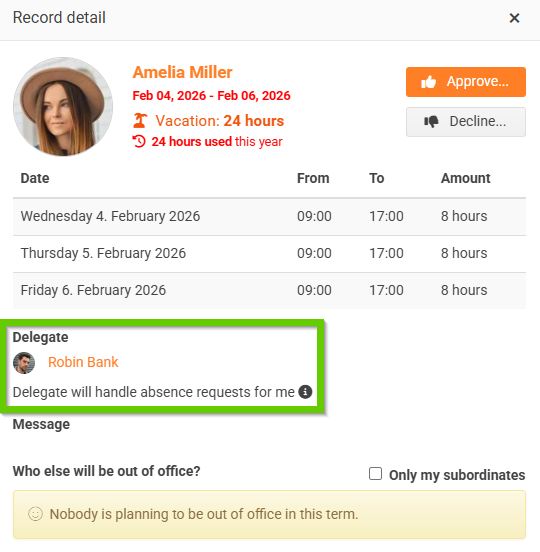
After your absence is approved, the delegate will receive an email notification that they have been selected as a delegate.
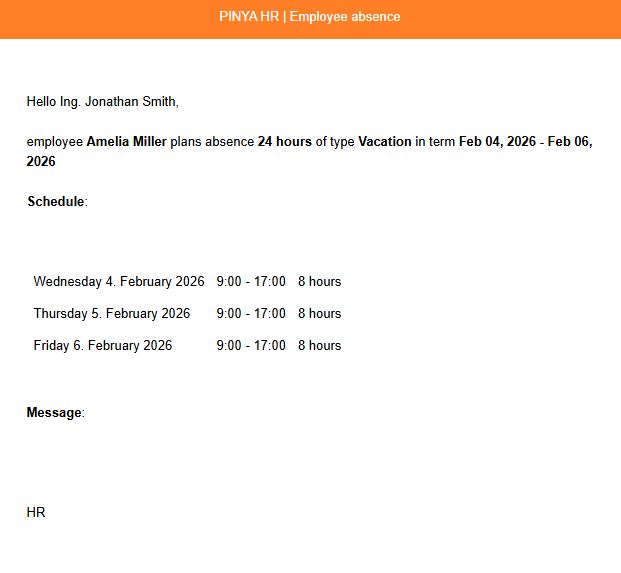
2. Application form from the perspective of the employee approving an absence as a delegate
The applicant sees the delegate as the approver, along with information about the duration of the delegation.
3. Absence entry or edit form from the administrator's perspective
(in case the absence is entered/edited by an administrator, HR administrator, or another person with authorization to manage absence records instead of the employee)
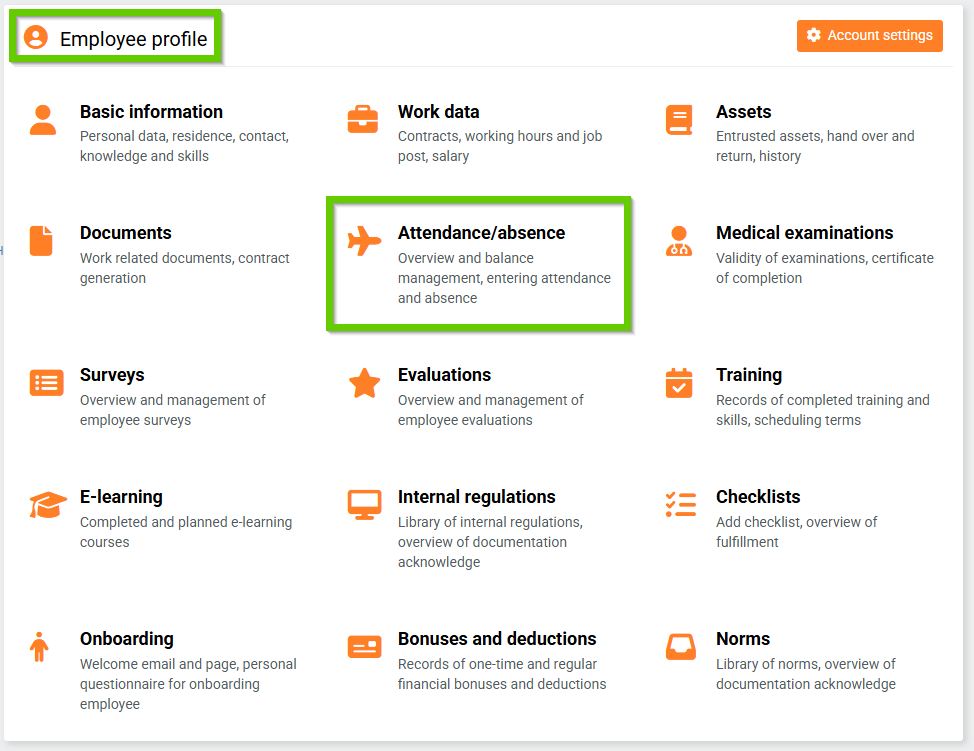
Go to Employee profile > Attendance/absence tab.
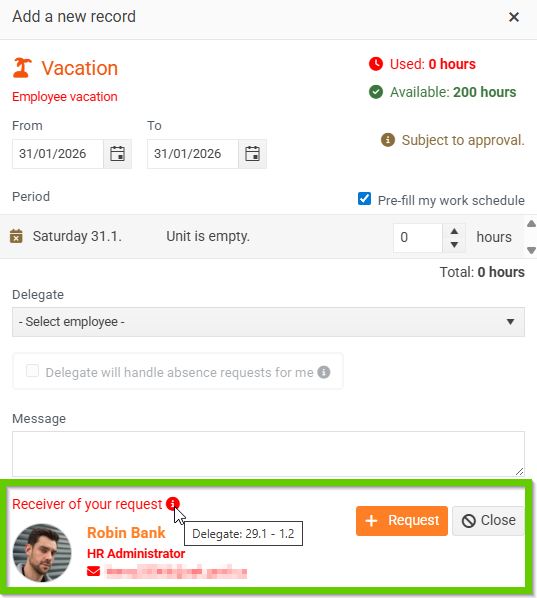
In the Record management section, click the pencil icon next to the selected record to edit it (or add a completely new record).
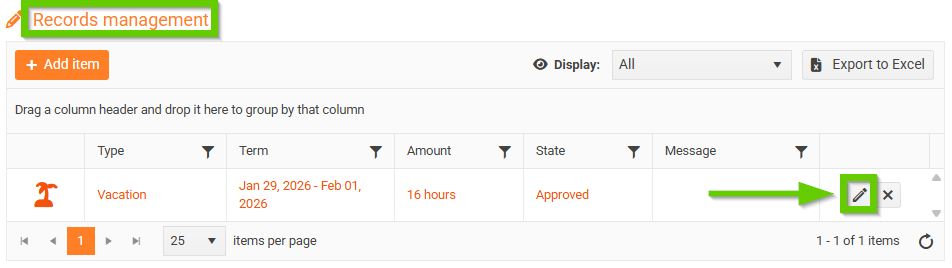
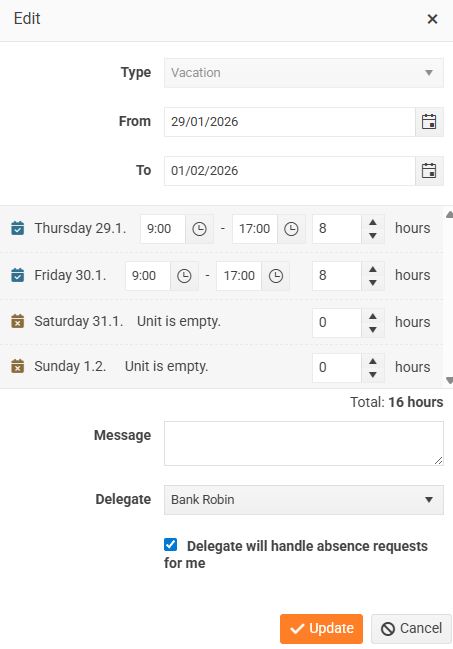
A window will open where you can enter or edit a delegate and the checkbox Delegate will handle absence requests for me. This form does not check whether the employee has a subordinate.