View employee information

The employee list is used to display all employees who work in the company.
By default, only active employees are displayed.
If you want to display the list including hidden employees (i.e. those who do not have Show in ORG checked in their account settings), check the Hide from ORG checkbox (1).
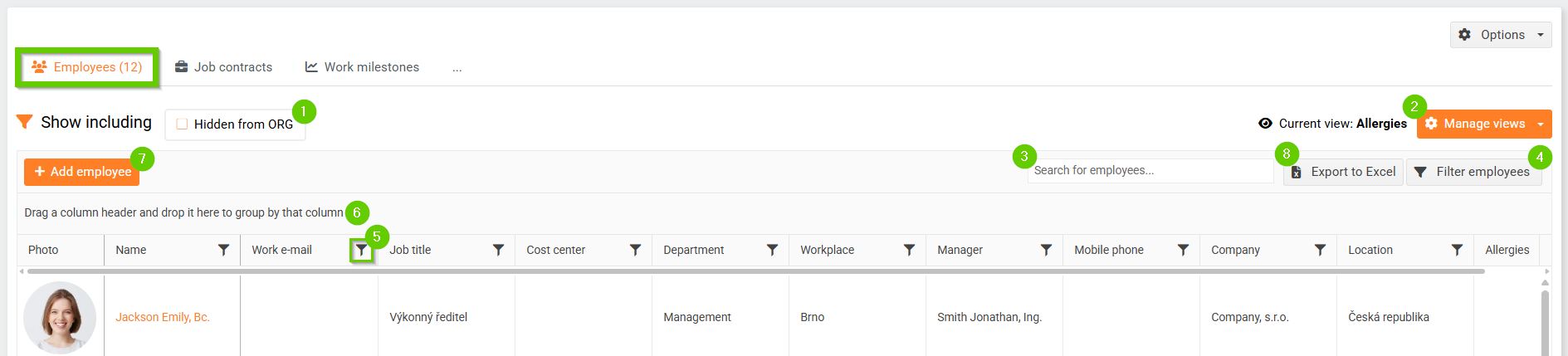
You can customize the employee list display to your needs by creating your own view (2). For detailed instructions, see the article Managing views.
You can search for a specific employee using the employee search field by name (3). The field has a so-called hint function (start typing text and the function will automatically offer suggestions).
If you click on the first and last name of the employee you are looking for, you will be taken to their profile. For more information, see the article Viewing other employees' profiles.
You can filter the entire list in several ways:
- Filter employees button (4) - enter parameters to search for the desired records (this filter allows you to filter multiple values for one parameter at once).
- filters in the overview header (5) - using the filter in the column header, only one value can be filtered at a time.
- grouping (6) - any column in the employee list can be dragged over the column headers to group employees, e.g. by center.
You can also add a new employee to the list (7). After clicking the button, you will be automatically redirected to the form for adding an employee.
You can export the entire list to Excel (8). You can pre-select the employee data that will be written to the exported file using the Manage views button.
