Bulk data editing

Bulk data editing allows you to edit work and personal data in existing records for multiple employees at once.
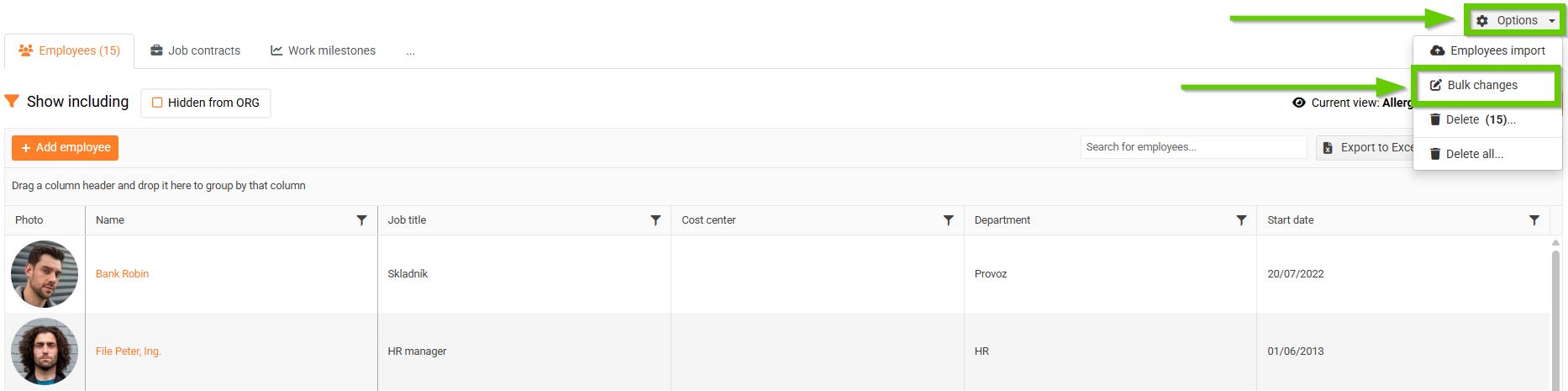
In the main navigation menu, go to the Employees > List of employees tab.
Here, click the Options button and then select Bulk changes.
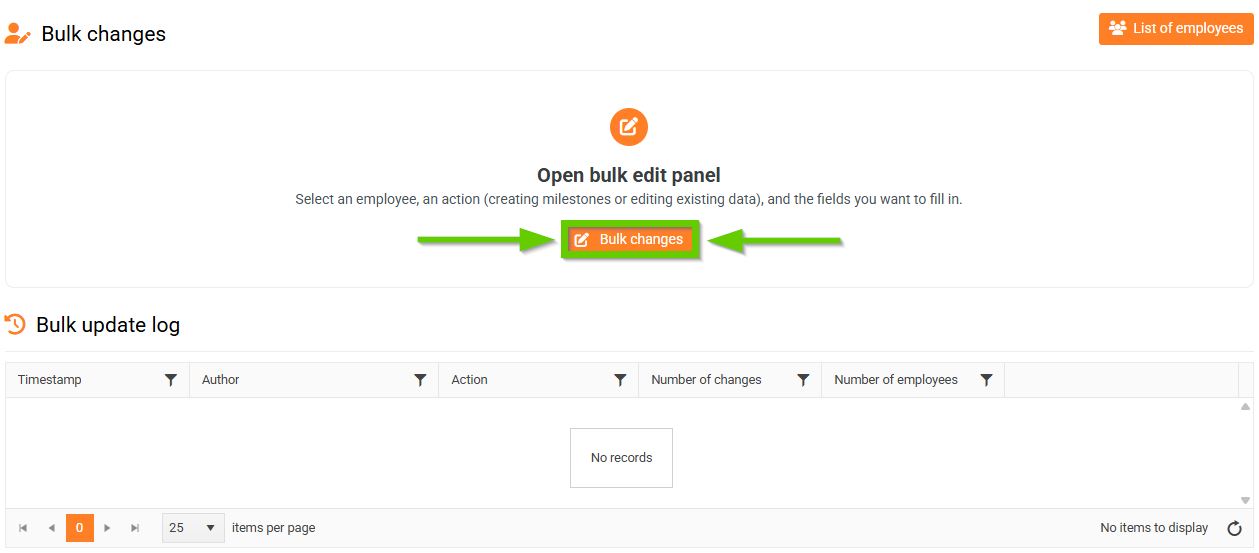
Then use the Bulk changes button to open the bulk edit panel.
The bulk data editing process consists of 5 steps:
- Employee selection
- Action selection
- Selecting fields to edit
- Entering changes to existing data
- Review and confirmation
1. Employee selection
To select employees, proceed as follows:
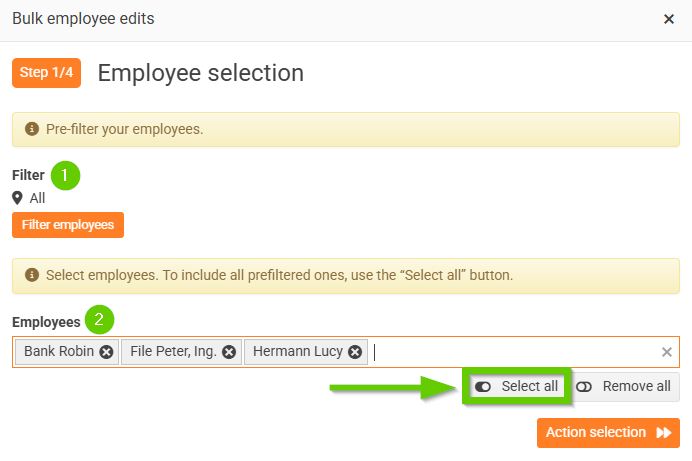
- Pre-filter your employees - the filter is used to pre-filter employees (same as targeting), you can filter, for example, by job positions, companies, type of employment contracts, etc.
- Select employees - you can use all pre-filtered ones (using the "Select all" button) or narrow their selection further.
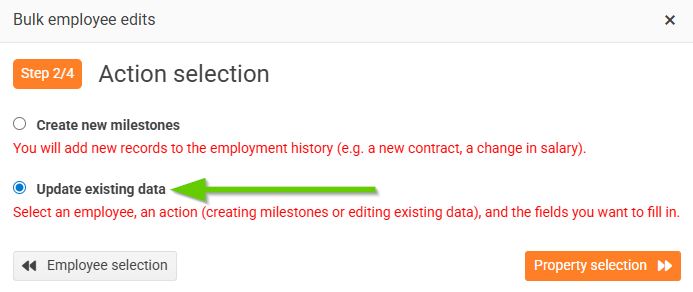
2. Action selection
Choose the Update existing data action.
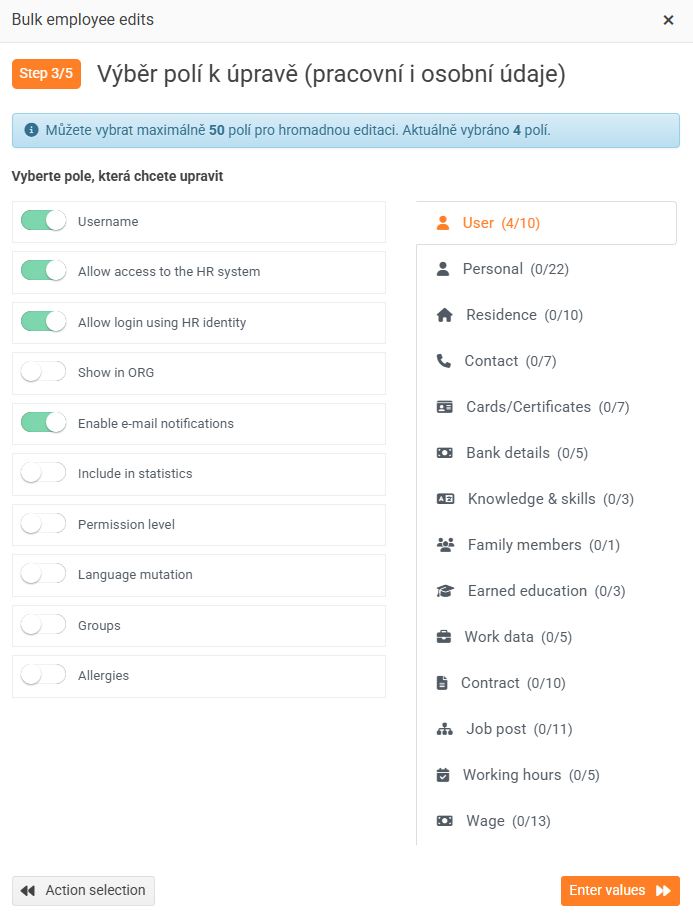
3. Selecting fields to edit
Use the radio buttons to select the fields you want to edit.
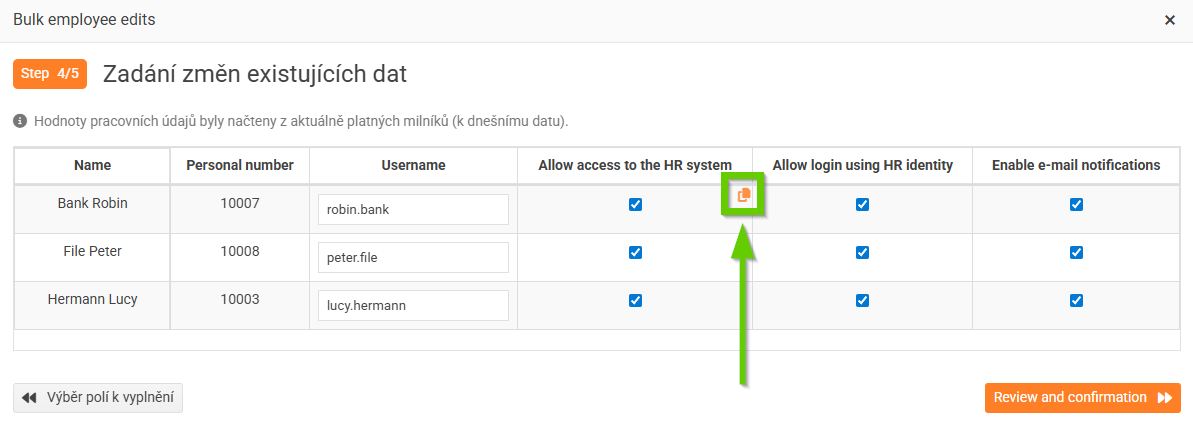
4. Entering changes to existing data
Enter your changes.
5. Check and confirm
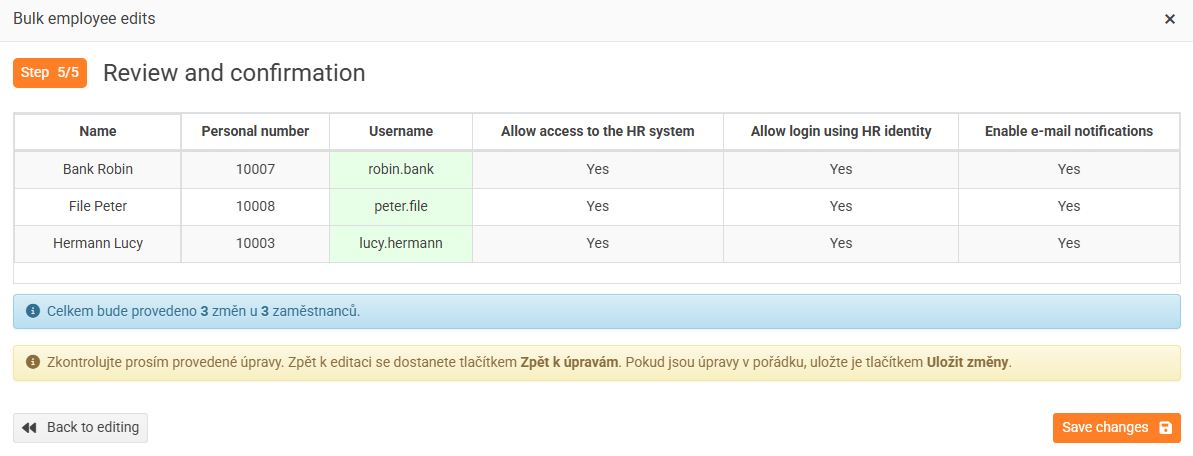
Check that the values you entered are correct. If you want to make any changes, click the Back to editing button.
Otherwise, confirm the bulk edit by clicking the Save changes button.