Admin panel guide

The admin panel serves as a link between the user (administrator) and the PINYA HR team.
In it, you can:
- change your personal information for billing purposes,
- contact support,
- subscribe or unsubscribe from newsletter sending,
- edit and personalize the domain for logging into PINYA HR,
- view the current status and validity of licenses in PINYA HR,
- view and download invoices,
- monitor the current status of license payments and the current number of active licenses.
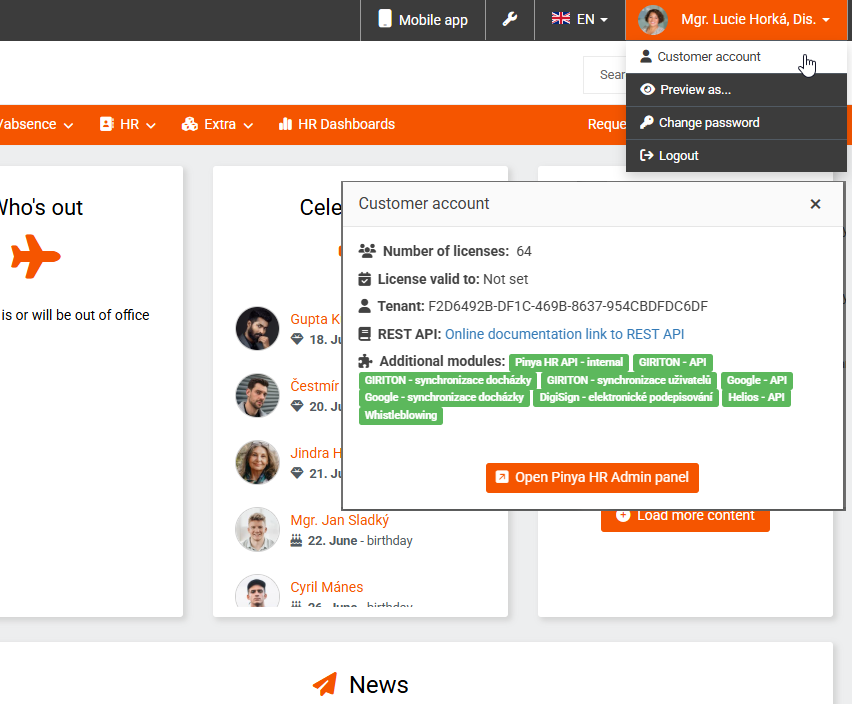
You can enter the admin panel by clicking through from the Pinya HR application.
You can find it under the Customer account option in the drop-down menu on the main (black) bar.
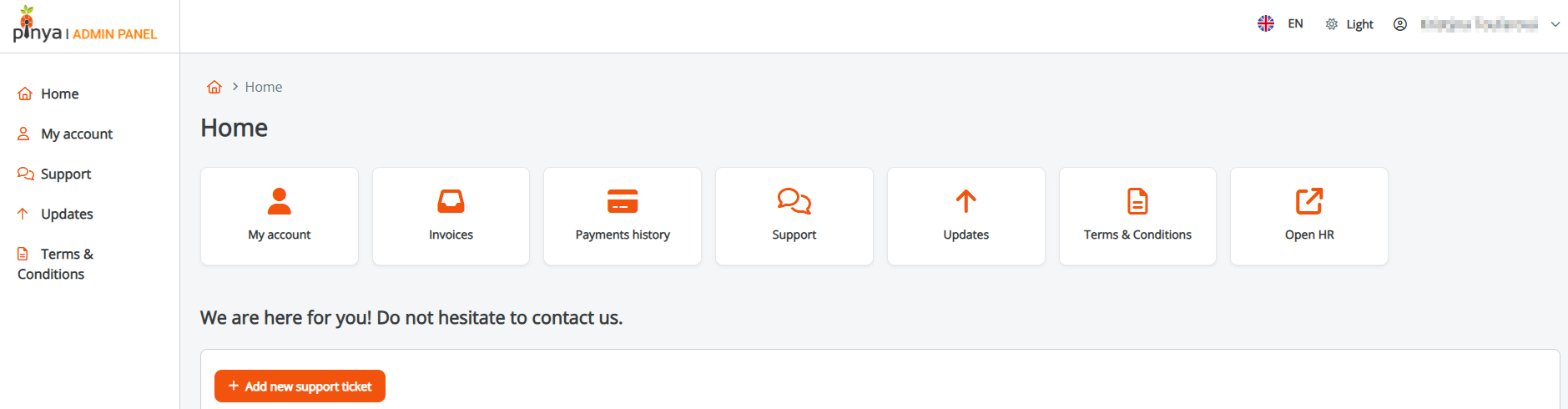
There are several sections on the main page of the admin panel:
- My account
- Invoices
- Payment history
- Support
- Update
- Terms and conditions
- Enter HR
1. My account
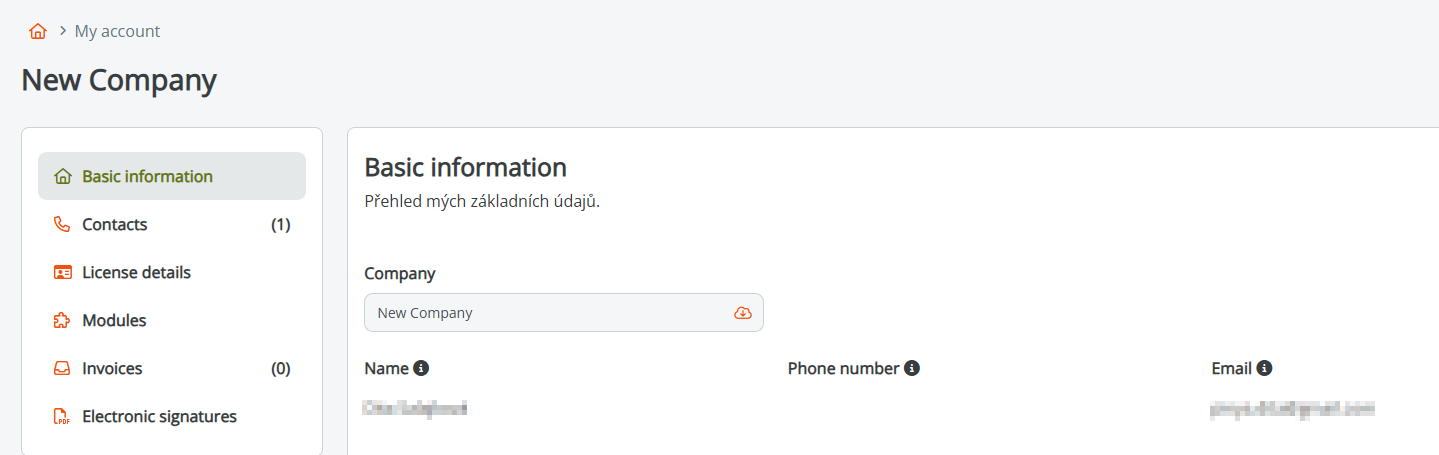
In the My Account section you will find several tabs:
- Basic information – management of basic information.
- Contacts – overview and editing of contact information.
- License details – information about your current license.
- Modules – an overview of available extensions to the PINYA HR system. In this section, you can activate or deactivate individual modules.
- Invoices – overview of issued customer invoices and their status.
- Electronic signatures – an overview of all created and used electronic signatures.
2. Invoices
In this section you can view and check your issued invoices.
3. Payment history
In this section you can view an overview of your payments and check their status.
4. Support
In the Support section, you can contact the Pinya HR team and ask for help in solving problems in the system.
To create a new request, click the Add button.
Then fill in:
- request name
- contents
- attachments
In the overview below you will find a list of all created requests including their current status.

5. Update
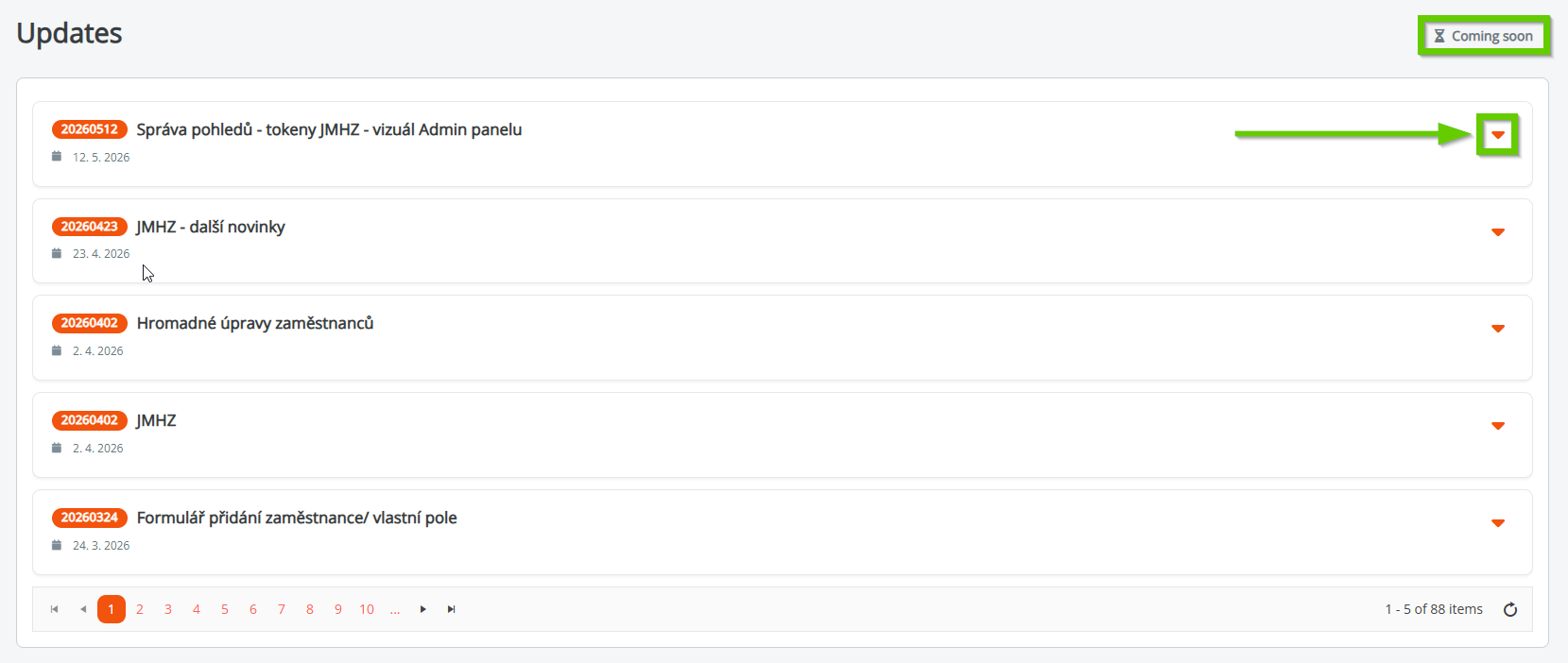
In the Updates section you will find an overview of all the news and changes in the Pinya HR system.
You can expand each update and view its details by clicking the arrow icon.
After clicking the Coming soon button, a list of features and changes that we are currently preparing for future versions of the system will be displayed.
6. Terms and conditions
In the Terms and Conditions section, you can find the current terms and conditions of the Pinya HR service.
Click the Preview button to view the document details, including its current version.

7. Enter HR
Click the Enter HR button to return to Pinya HR.
