Sending an onboarding email

You can send your onboarding email within 2 places in PINYA HR:
- on the employee profile
- in the onboarding module
1. Sending an onboarding email on the employee profile
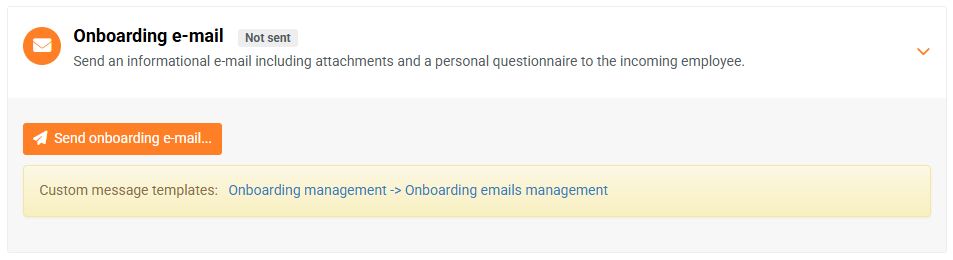
- Send an onboarding email to an employee from the Onboarding tab on their profile.

- On the Onboarding tab, click the Send onboarding e-mail button.
- Choose whether the onboarding email should be sent to the employee's personal or work email address.
- Select a welcome email template.
- If the template includes a link to a personal questionnaire, select the Personal questionnaire type.
- Send an email.

You can find out how to set up a welcome email template here.
Sending an onboarding email is not tied to enrollment in an onboarding profile. You can also send this email to (future) employees who are not yet enrolled in any onboarding profile.
2. Sending an onboarding email in the Onboarding module
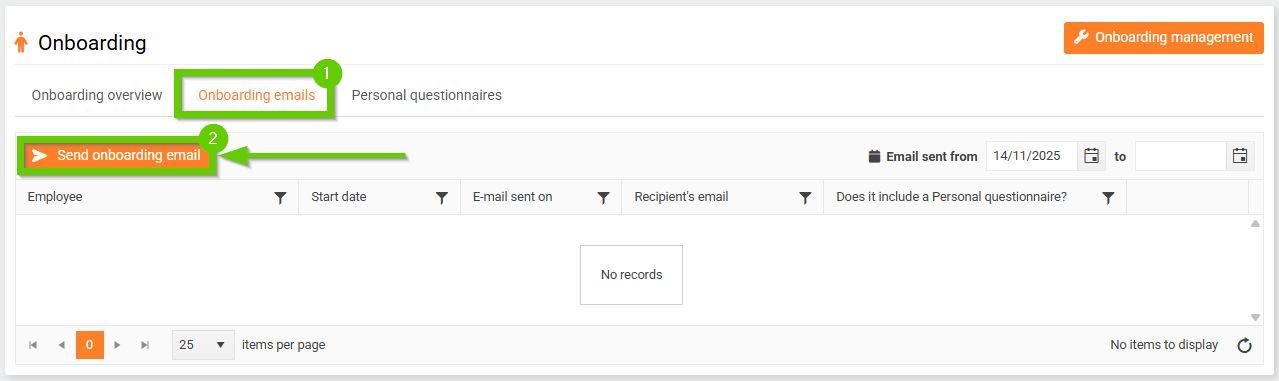
- In the main menu, go to the HR > Onboarding > Onboarding emails tab.
- Click Send onboarding email.
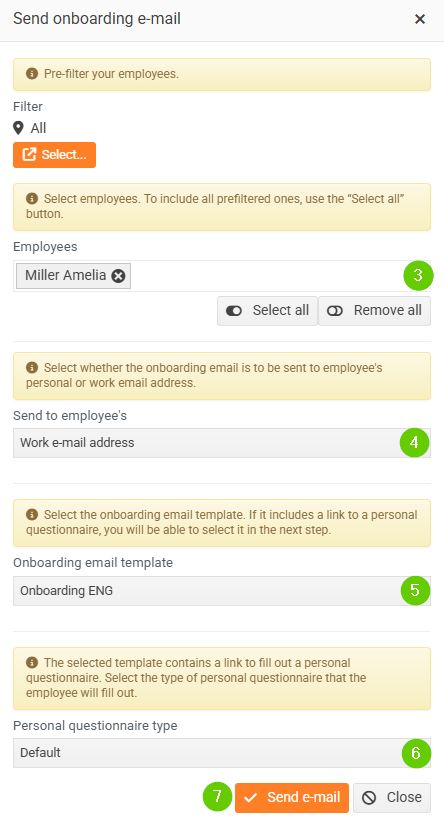
- Select the employees you want to send the onboarding email to.
- Choose whether the onboarding email should be sent to your personal or work email address.
- Select a welcome email template.
- If the template includes a link to a personal questionnaire, select the Personal questionnaire type.
- Send an email.
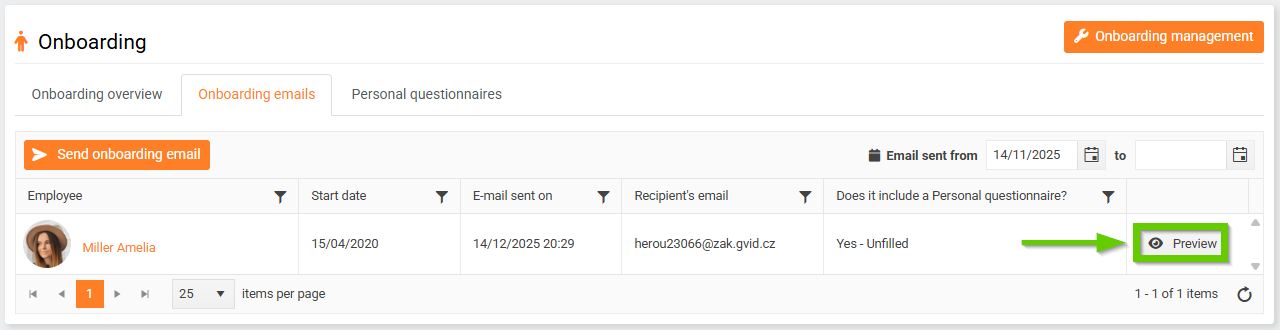
You can view the content of the sent onboarding email by clicking the Preview button in the list of sent onboarding emails.