Requests panel

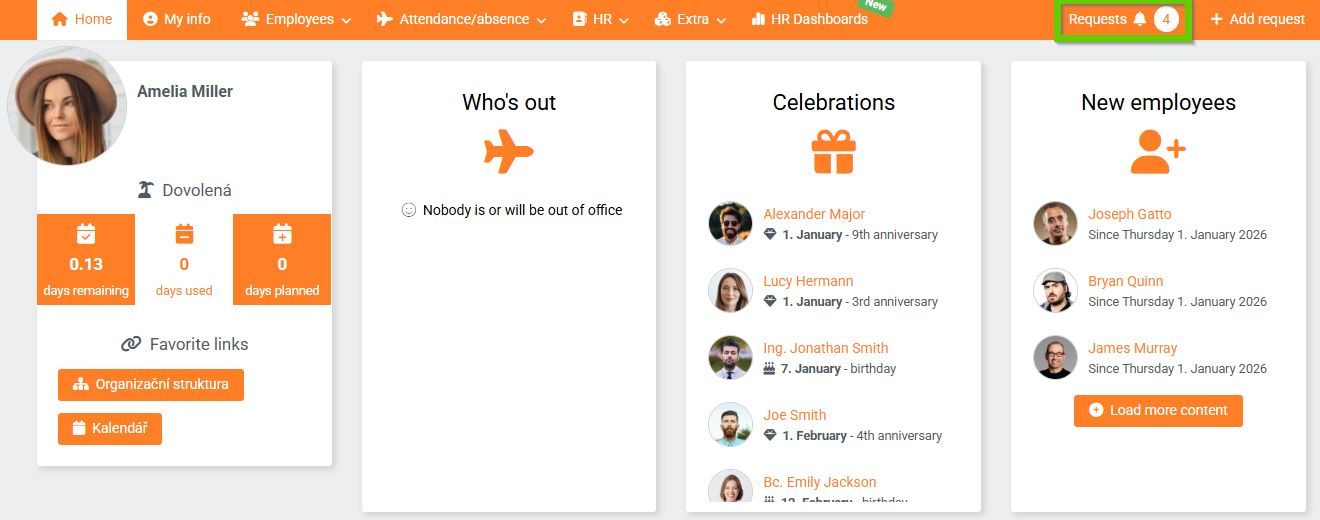
You can access the list of your requests (both completed and pending) from the main color bar using the link
titled Requests. The number next to the link symbolizes the number of your outstanding requests.
In PINYA HR, you can find a large number of requests related to, for example:
- welcome page
- familiarization with manuals
- absence
- evaluation
- medical examinations
- e-learning
- training
- checklists
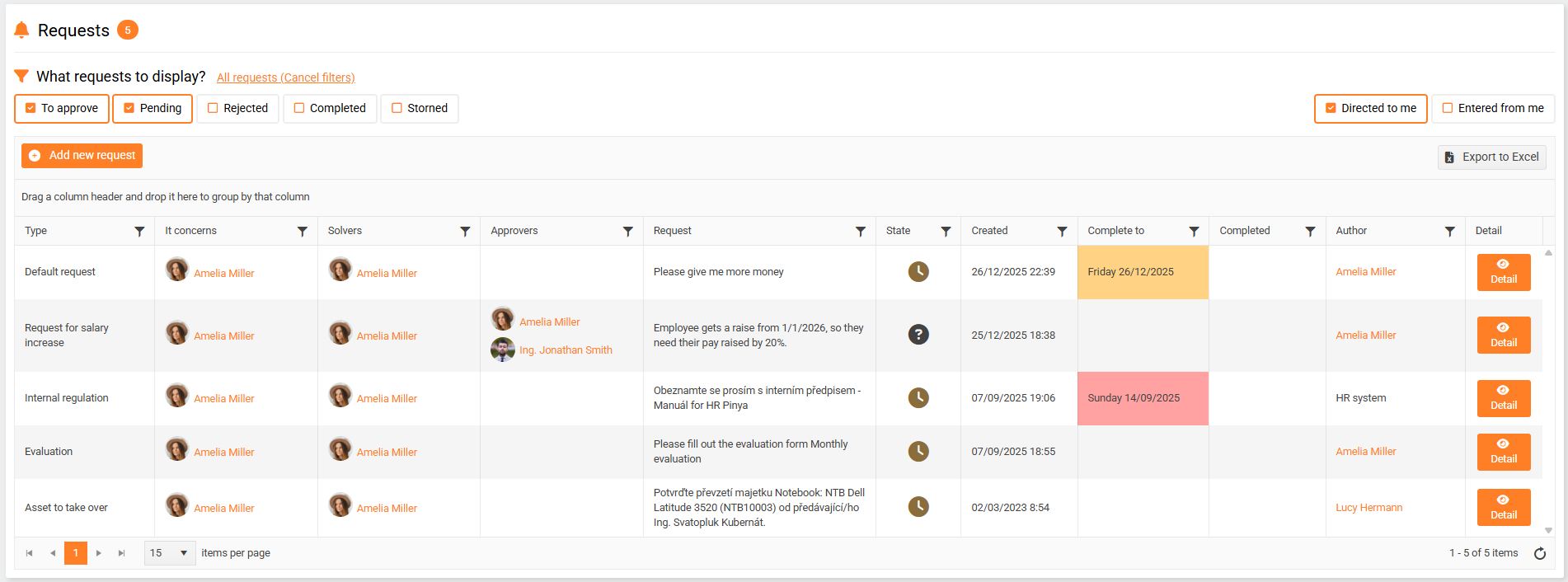
In the requests list, there are several options for filtering the desired records:
- Checkboxes
- Filter in column headers
- Grouping
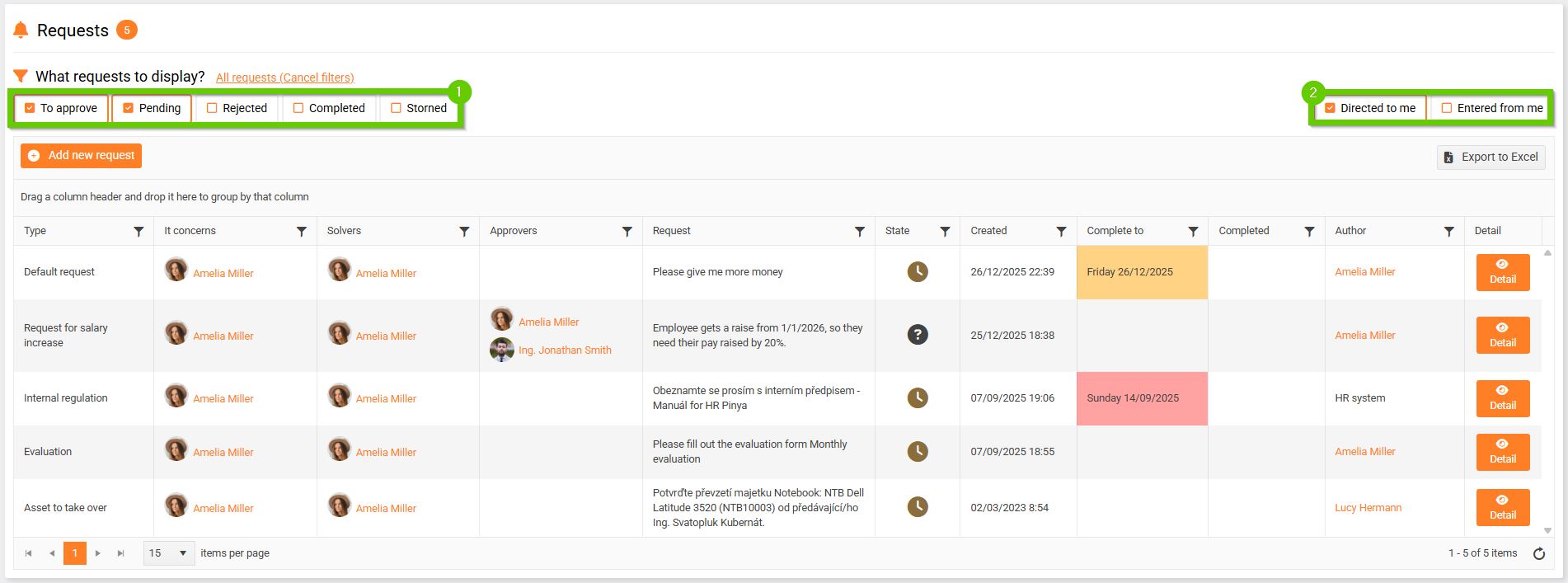
1. Checkboxes
You can filter by checking one or more checkboxes. These are divided into 2 groups:
- Checkboxes related to the request status - For approval, To be processed, Rejected, Completed, Canceled (1)
- Checkboxes related to the logged-in user - Intended for me = requests that I have to approve, Entered by me = requests that I entered (2)
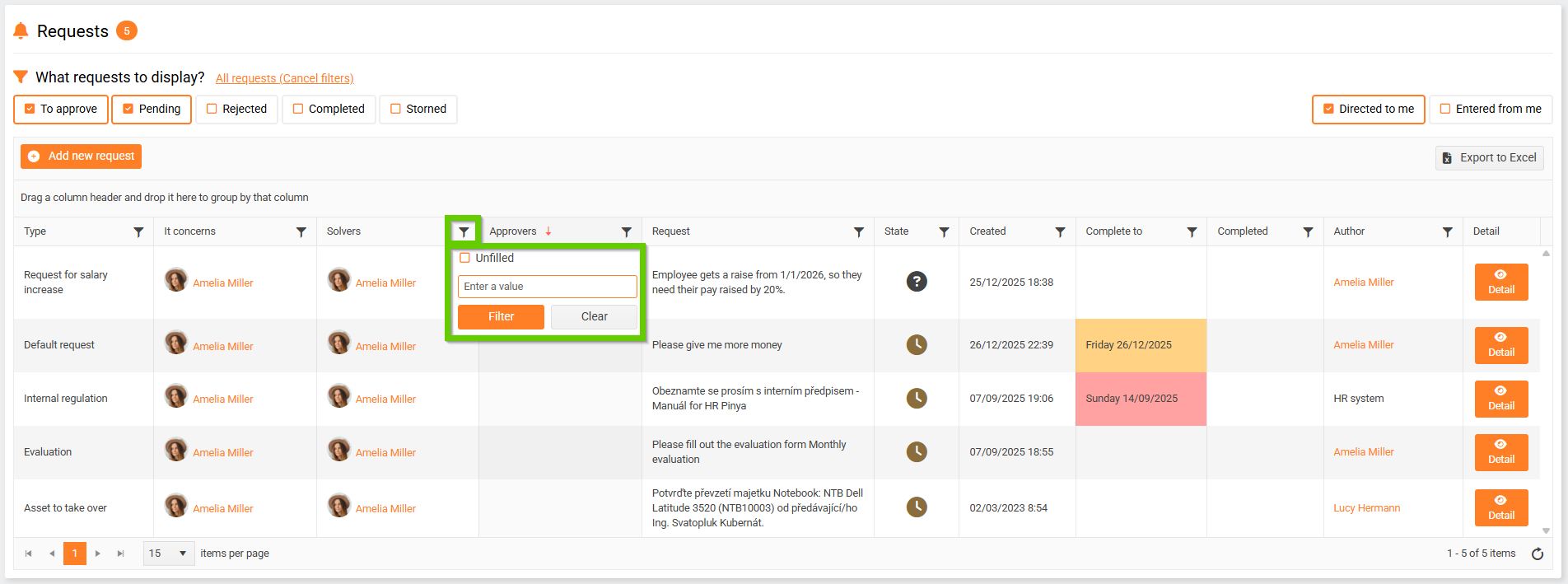
2. Filter in column headers
You can also filter records by clicking the filter icon in the column header and then filling in the values by which you want to search for records.
3. Grouping
You can also use the grouping option to make it easier to navigate through the records. Any column in the requests list can be dragged over the column headers to group the requests (for example, by due date).
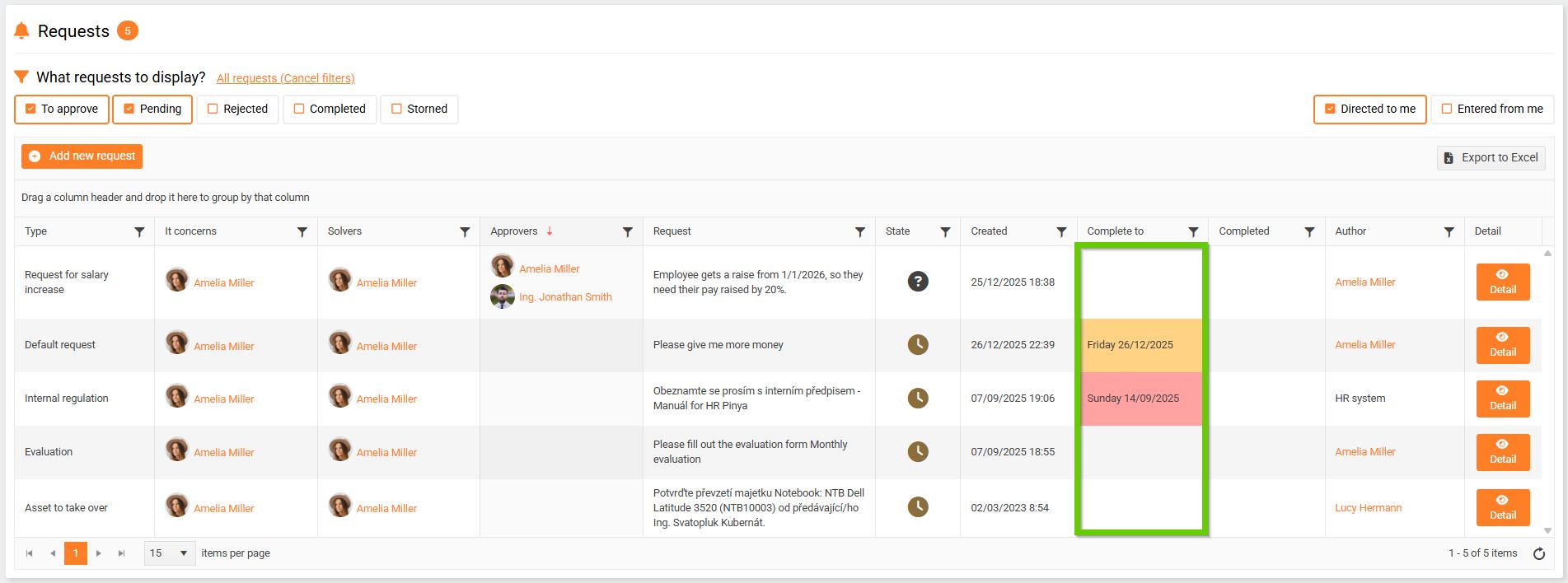
(Figure 1 - list of requests before grouping)
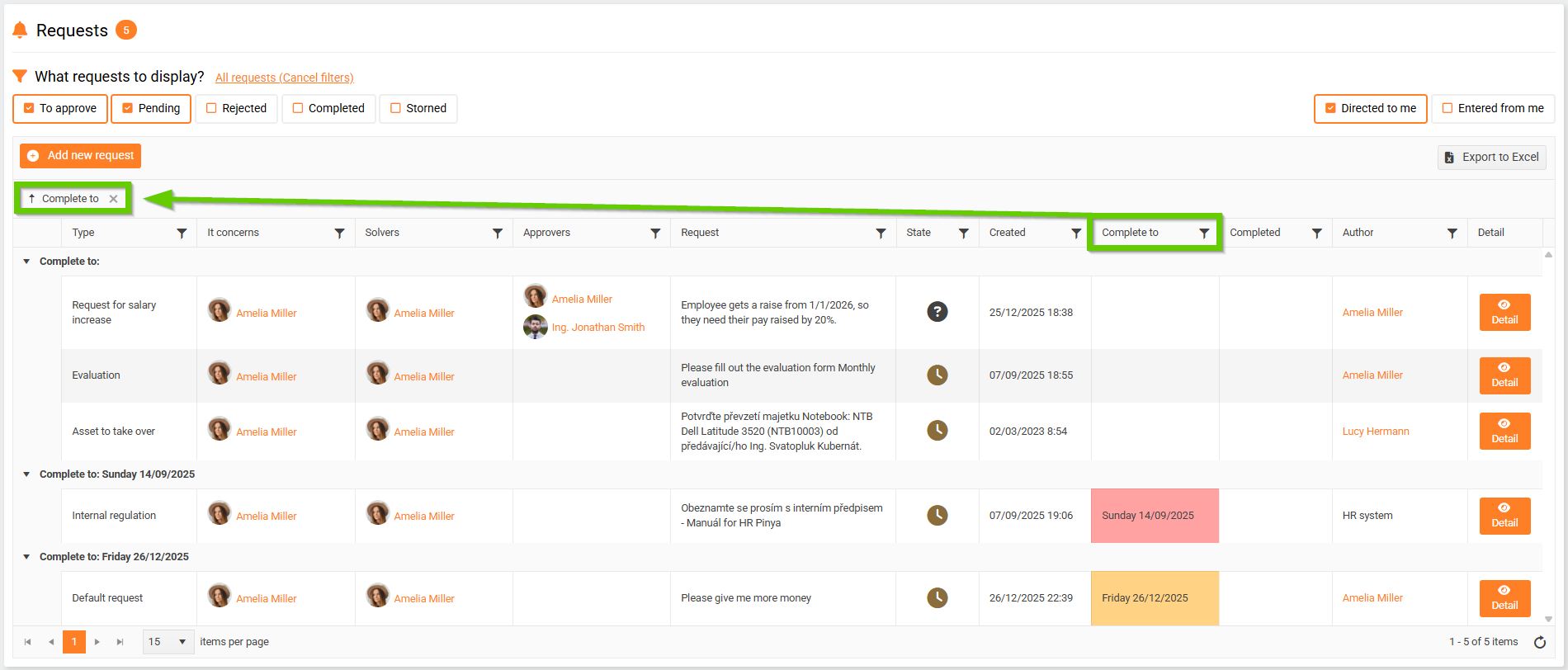
(Figure 2 - list of requests after grouping)
Request details
Each record has a Detail button. Clicking on it will display the details of the relevant request.
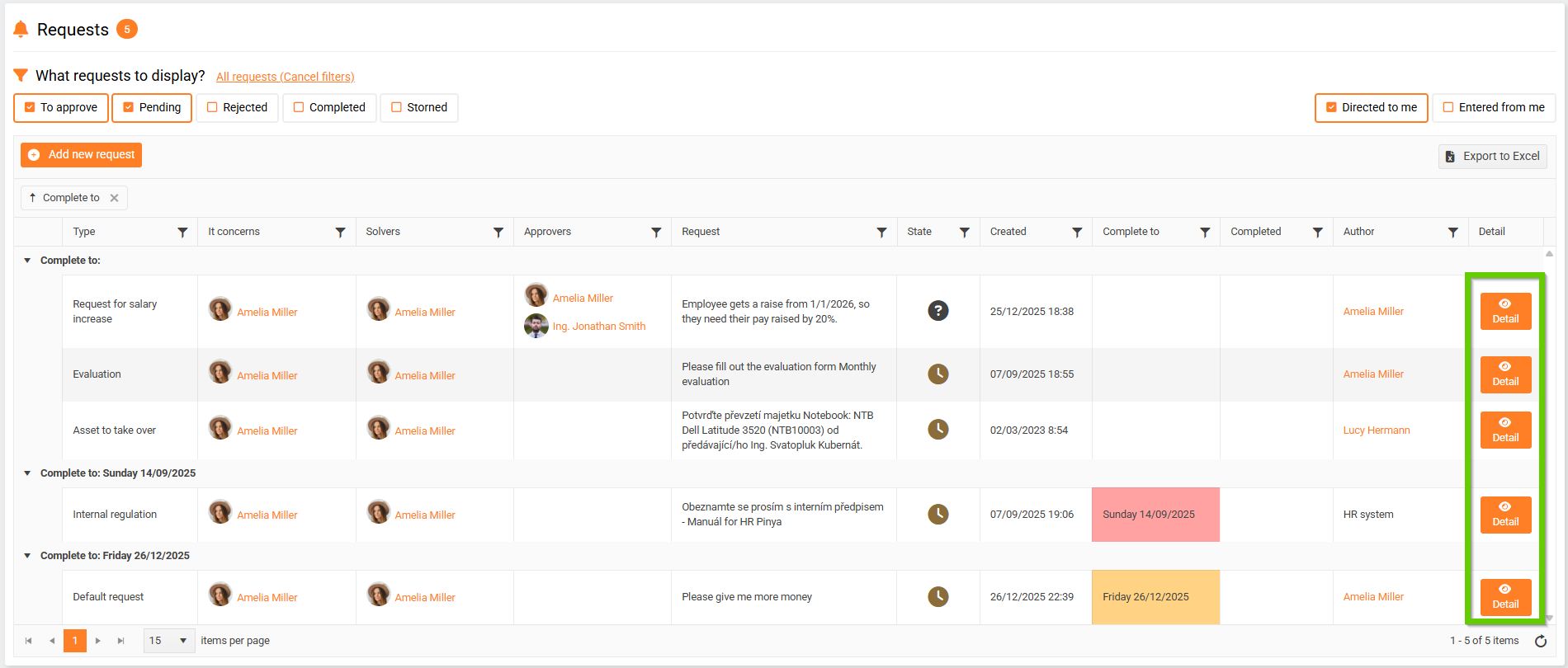

The solver has the following options available in the request details:
- to complete the required task (e.g. approve monthly attendance, approve absence)
- or a button that redirects them directly to the module in which they can complete the task (e.g. familiarizing themselves with the manuals, completing the evaluation)
