Bulk absence entry

Bulk absence entry is used to quickly enter absences for multiple employees at once,
e.g. during a company-wide holiday.
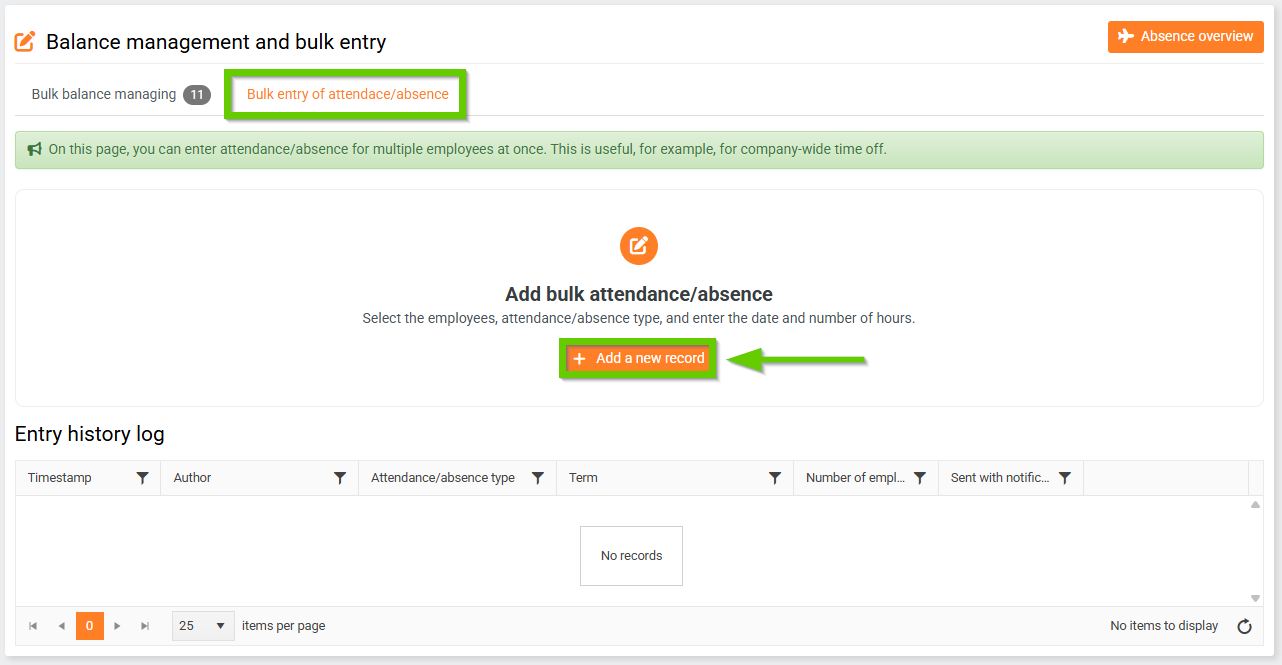
You can find it on the main panel in the tab:
Attendance/absence > Balance management and bulk entry > Bulk entry of attendance/absence tab.
Bulk entry of absence for multiple employees consists of 2 steps:
- Generating bulk absence
- Bulk adding records
1. Generating bulk absence
To add a bulk absence, click the Add new record button.
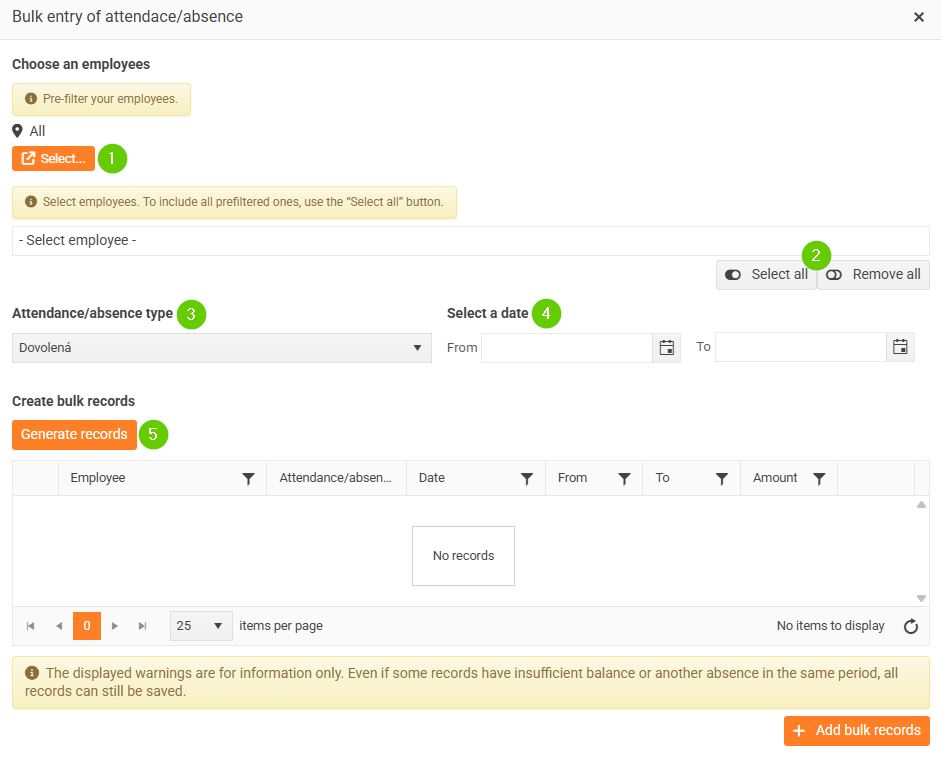
A form will open in which:
- Set targeting - used to pre-filter employees (e.g. by company, department).
- Select employees - you can select all of the pre-filtered employees using the Select All button, or you can select only some of them.
- Select the attendance/absence type.
- Select a date from–to to specify the duration of the absence.
- Click the Generate records button.
Bulk adding records
The generated records are displayed in the table.
One record is created for each employee for each day of absence.
These records can be managed:
- Click on the pencil icon (1) to edit the record,
- Click on the cross icon (2) to delete the entry.
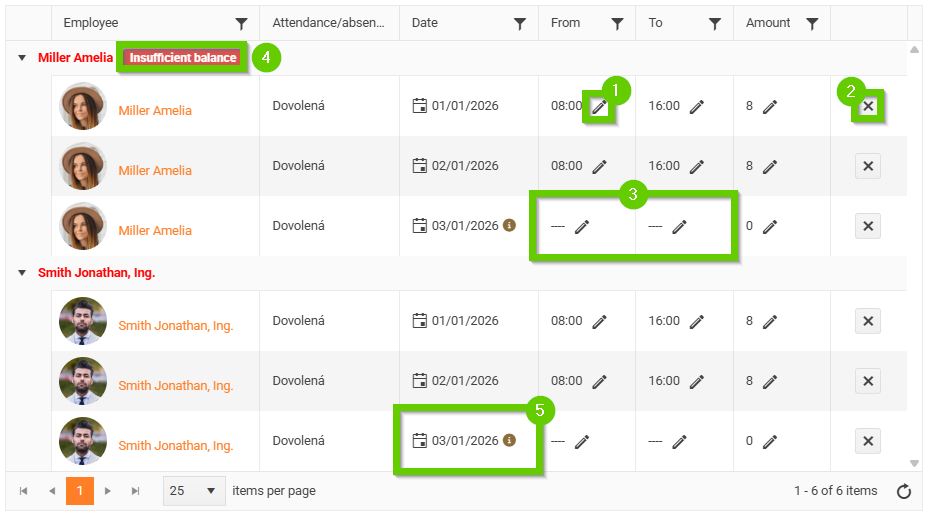
This happens if the employee does not have working hours set for the selected day, or if it is, for example, a weekend or public holiday.
If the selected employee does not have sufficient vacation balance, a red warning will appear next to their name (4).
In the Date column, after adding records, the ! or i icon (5) may appear next to the date:
- ! = overlaps with another absence
- i = non-working day/weekend
When you hover your mouse over the icon, a more detailed description appears.
Even if there is insufficient balance for some records, or there is another absence on the same date, all records can be saved.
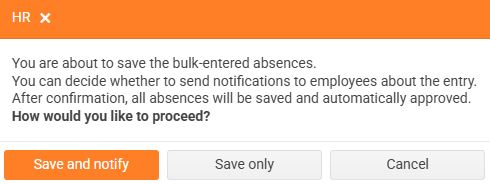
After reviewing the records, click the Add records in bulk button (6) to add them.
A notification will appear - choose whether you want to send notifications to employees about entering absences or whether you want to just save the records.
You can find the created records in the input history log.
Click the More info button to view a list of employees included in the record.

