Viewing the organizational structure

You can customize the organizational structure view using:
- level setting
- compactness setting from a certain level
1. Setting levels
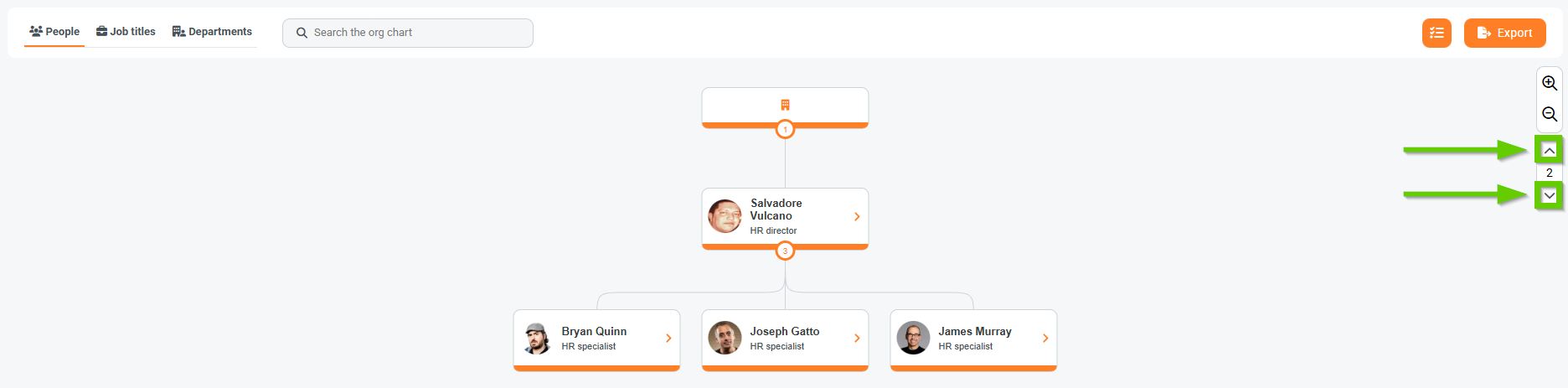
Setting levels allows you to specify how many levels of the organizational structure to display.
On the right side of the screen, there is a level setting button that allows you to select the number of displayed levels.
By default, 3 levels are automatically displayed. Use the up or down arrows to adjust this setting.
2. Compact from the level
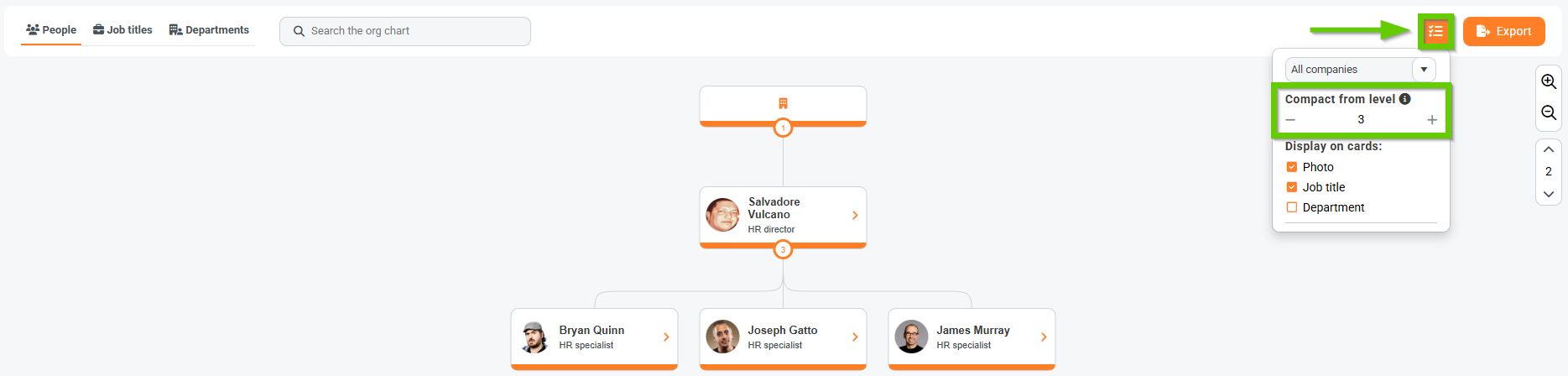
Compact display from a certain level onward allows you to reduce the size of individual blocks and organize them more efficiently, which is especially practical for large structures with many subordinates.
On the right side of the screen, there is a button for setting compactness from a certain level, which allows you to choose from which level the structure should be displayed in compact mode.
By default, compact mode is enabled from level 3. This setting can be changed.
You can zoom in or out on the organizational structure using the magnifying glass or mouse wheel.
If you click on the structure and hold down the mouse button, you can move it around the screen and easily view the desired part.
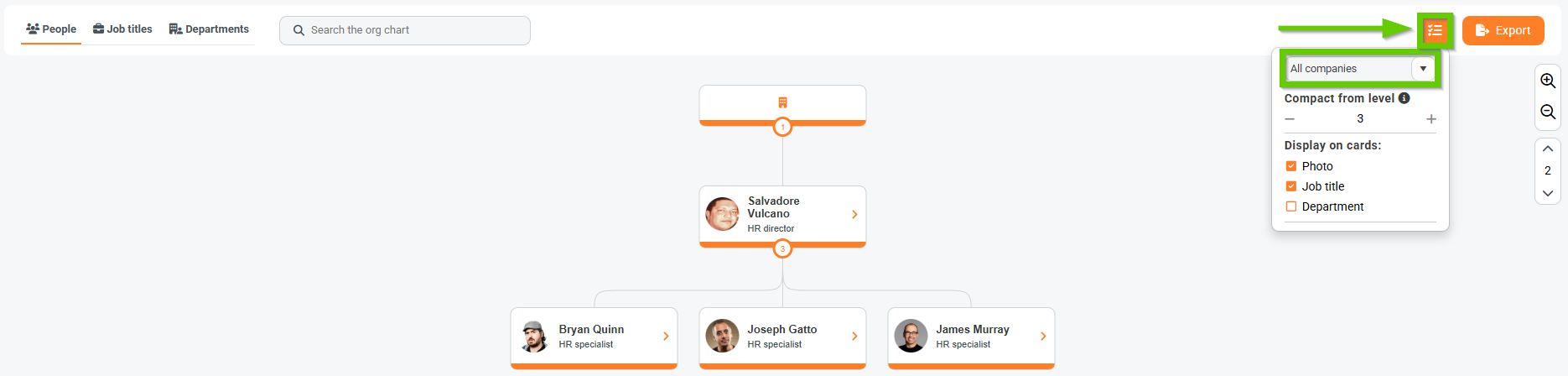
On all tabs, you can also specify whether you want to display the organizational structure for all companies or select just one specific one.
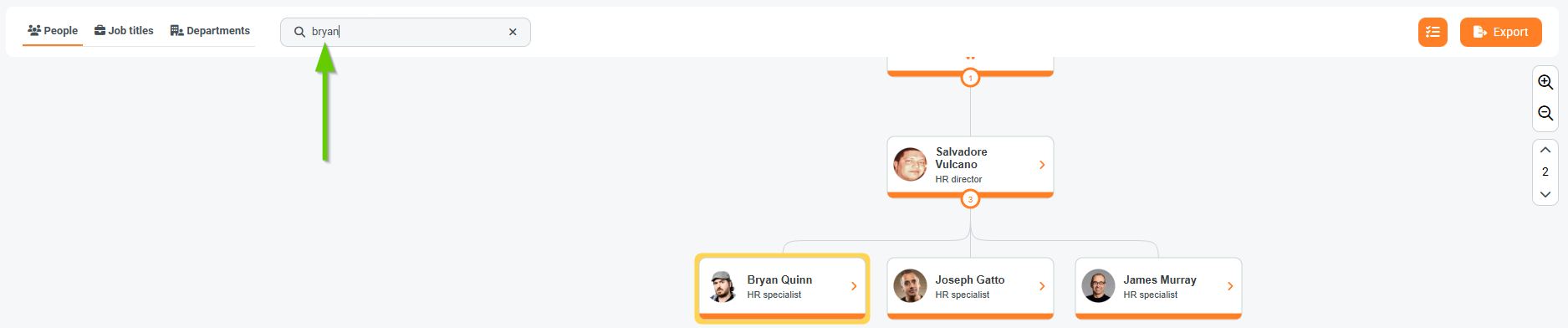
You can search the displayed organizational structure using the Search organizational structure field.
The search will highlight in yellow all records that contain the entered text.
- People - start typing the employee's first/last name
- Job titles - start typing the employee's name/last name or job title
- Departments - start typing the employee's first/last name or department name
Search will highlight in yellow all records that contain the entered text. Just enter part of the first/last name, job title, or department, and all matches will be displayed directly in the structure.