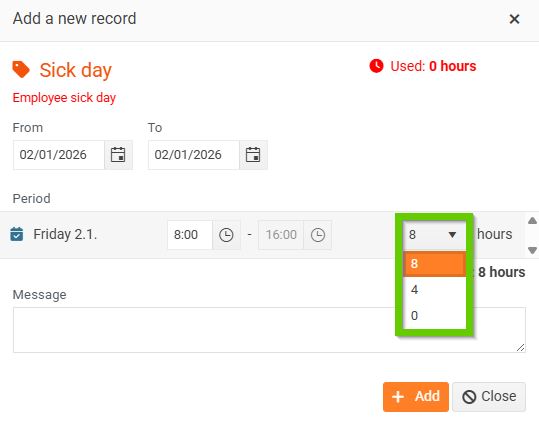
Is working time

If the absence type is marked as Is working time and also has a preset exact number of hours or days,
that can be requested within the day, the system will automatically pre-fill the highest possible value from these presets.
How to do it?
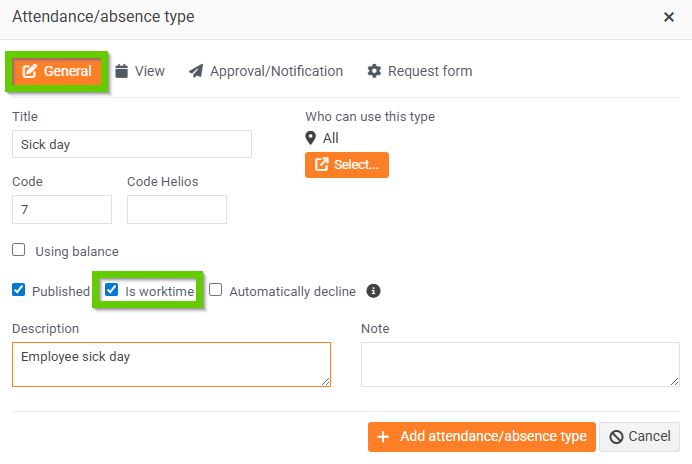
On the Attendance/absence Type form, on the General tab, select the Is working time checkbox.
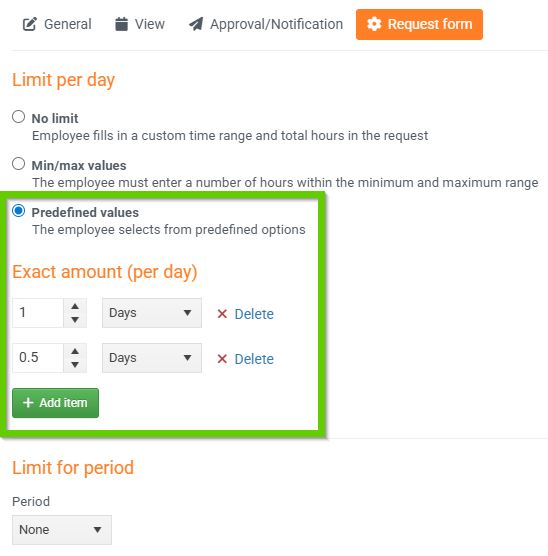
Then go to the Request Form tab. Here, select the Preset values option and set the Exact amount (per day).
The employee will have the highest value from the presets pre-filled in the request (for the type of absence set in this way).
If multiple values have been set for Exact amount (per day), you can change the value by clicking on it. Only predefined values and 0 are available.