Monthly export

You can find a monthly export with an overview of presence/absence in the Attendance/absence menu > Absence overview > Monthly export tab (Fig. 1).
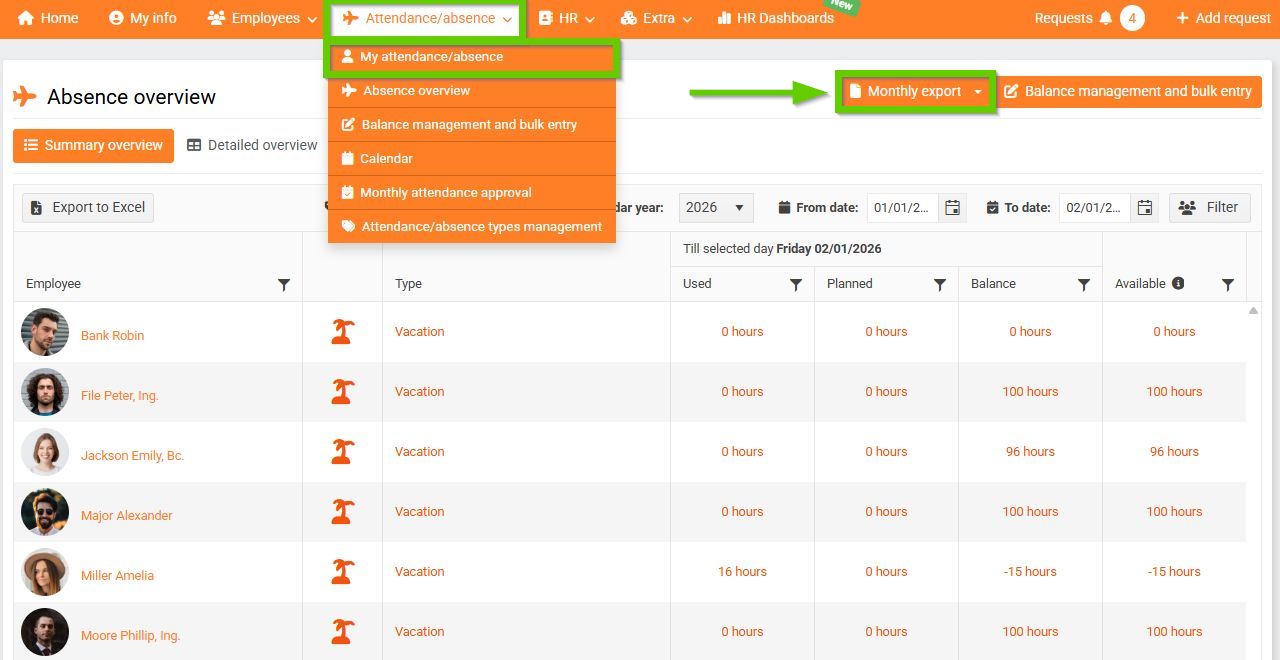
(Fig. 1)
The exported data is displayed in a clear table.
- Row = one employee
- Column = one day
- Calendar exceptions are highlighted in color. They are then included in the total number of days worked (fourth column from the left in Fig. 2)
- Weekly hours (second column from the left in Fig. 2) display data that the system draws from the employee profile.
Presence/absence is displayed in the table in the form of abbreviations according to type. In the case of absence of a given employee, the presence/absence type is written not only in the relevant row, but also in the column located in the right part of the table.
If presence/absence is recorded in hours, this information is written into the table. For example, if an employee was at the doctor’s for two hours, this information appears in the table as 2/Medication.
Attendances/absences are deducted from the total hours worked unless the option indicating that the absence is not working time is checked for the given presence/absence type. For example - home office is an absence type when the employee is out of the office, but performs his work from home on a given day. Therefore, this absence may not be included in the table if it is set this way in the balance and types management.
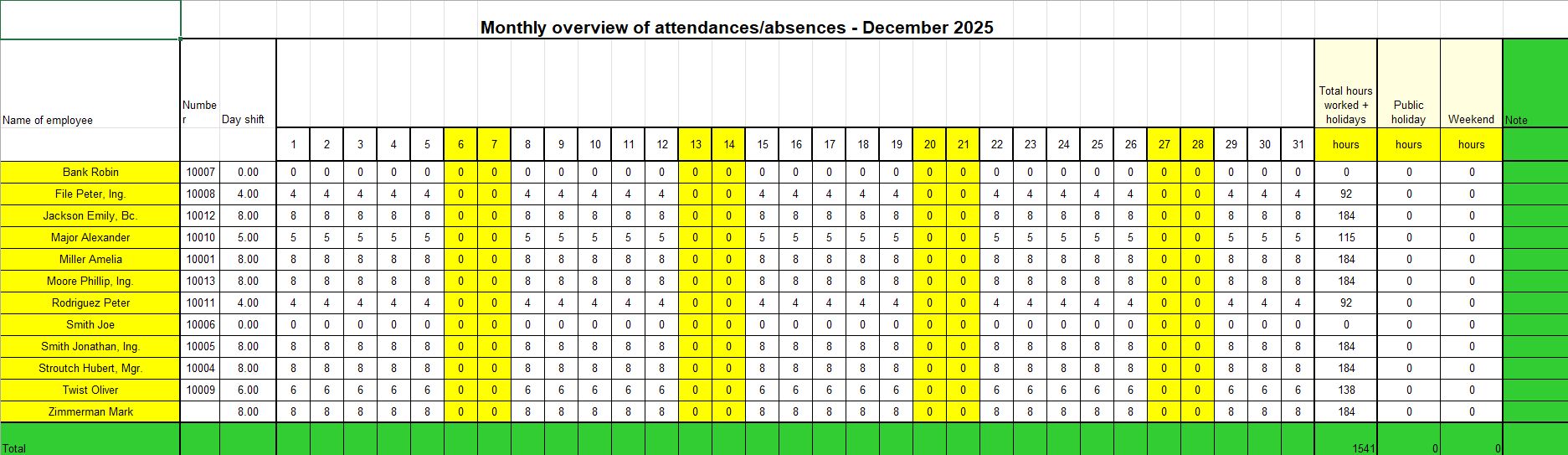
(Fig. 2)
- In Account settings, Show in ORG is checked.
- On the Work data tab, the Start date and Country must be set, and at least part of the month must have a non-zero Schedule.
- At least part of the monitored month must fall within the employee’s active period.
