Evaluation - the employee answers followed by the manager

A scenario where the employee responds first and then their supervisor.
1. Template settings
Questions for both the employee and the manager are added to the template.
For detailed information on how to create a new template, see the article Creating a new template.
2. Evaluation process
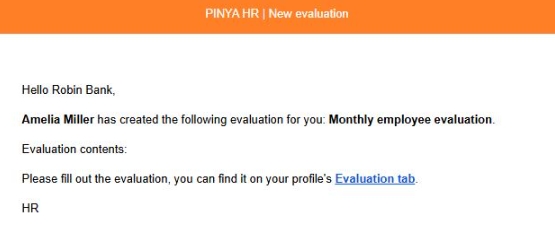
- The employee to whom the evaluation has been added will receive a notification to their email address containing a link that will redirect them to the evaluations page.
To create a new employee evaluation, see the article Creating a new evaluation.
- Here, on the Employee Questions tab, the employee answers the questions. If they click the Save draft answers button, they can return to the assessment at any time and edit or complete it. The assessment is in the Opened phase and in the In progress by employee status.
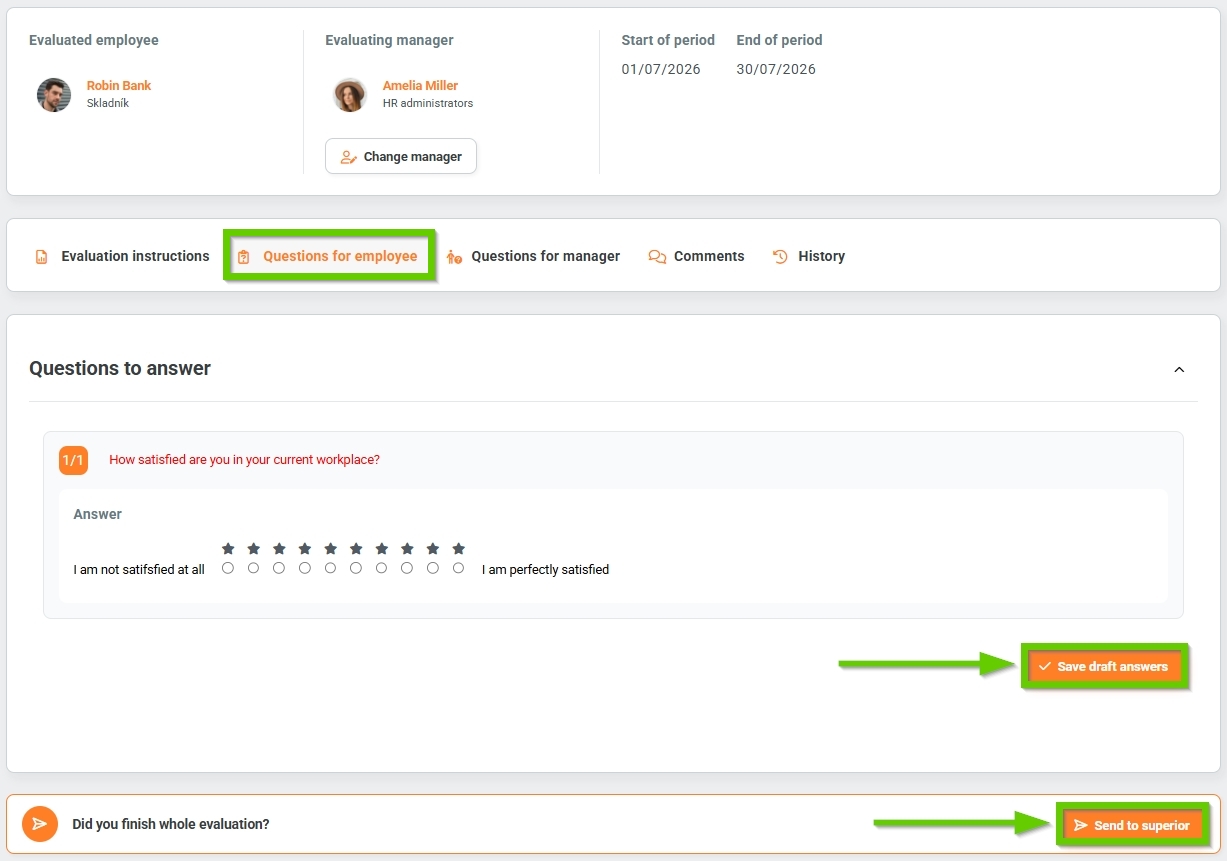
- On the Questions for Manager tab, the employee sees questions for their supervisor, but does not have the option to edit them. If the Visible to employee switch is inactive in the template settings on the Questions for Manager tab, this tab would remain empty.
- On the Comments tab, the employee can add a comment to the evaluation.
- On the History tab, the system automatically records all actions related to the given assessment.
- Once the employee has completed the entire questionnaire, they click the Send to supervisor button. A notification will appear that must be confirmed.
- The review phase is still Opened, but the status has changed to In progress by manager.
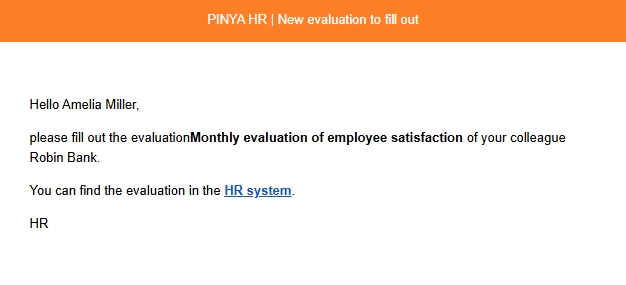
- The supervisor will receive an email notification containing a link that will redirect them to the evaluation page.
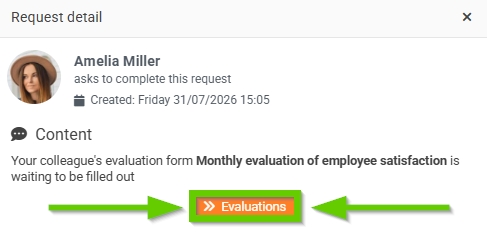
- At the same time, a request for the supervisor to complete the evaluation is automatically created. Clicking the Detail button opens the request details.

If they click the Evaluations button in the request details, they will be automatically redirected to the evaluations page.
- Here, on the Questions for Employees tab, the supervisor can see how the employee answered, but has no way of interfering with them.
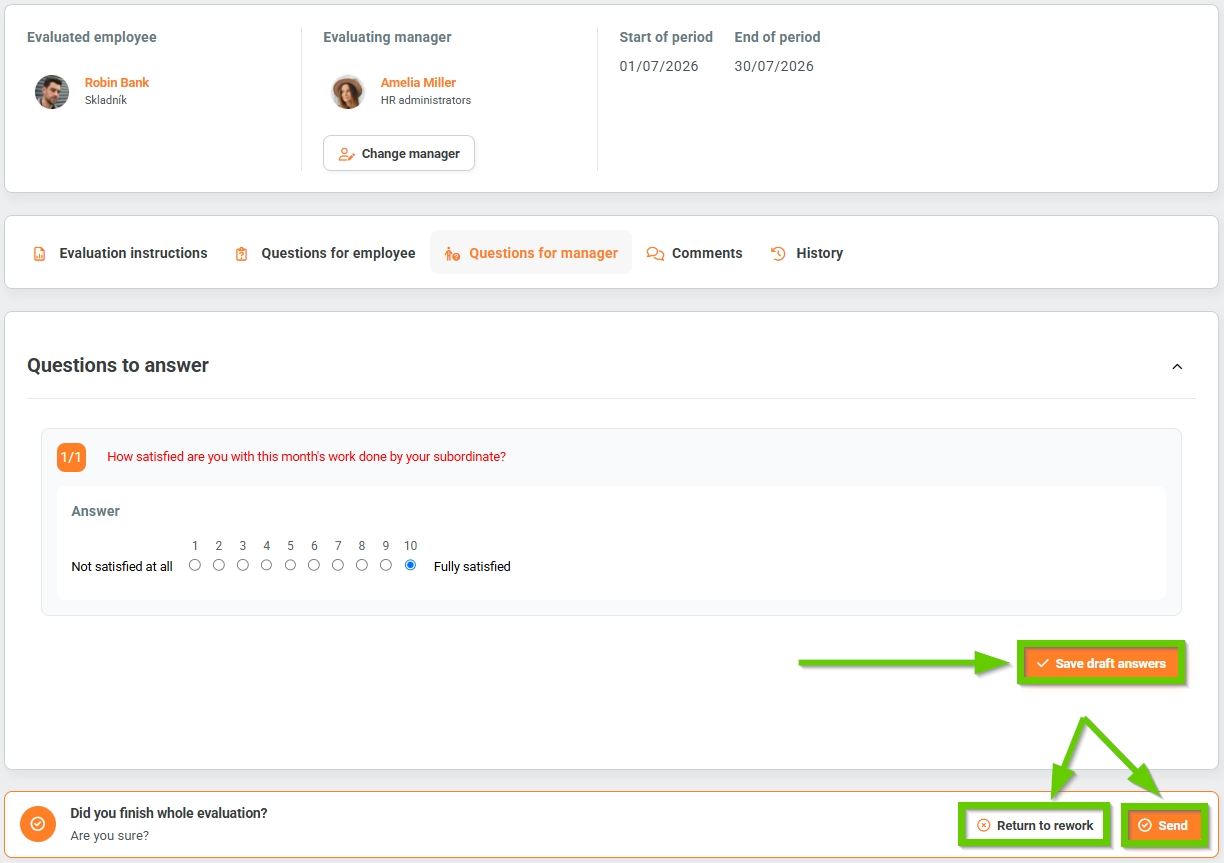
- On the Manager Questions tab, they answer the questions. If they click the Save draft answers button, they can return to the assessment at any time and edit or add to it.
- On the Comments tab, you can add a comment or add a top comment, i.e. it will always appear first - see the Top comment article.
- On the History tab, the system automatically records all actions related to the given assessment.
- The supervisor has a choice of 2 options:
- Send - If the supervisor clicks the Send button, a notification will appear that must be confirmed. The evaluation is in the Closed phase and in the Completed status.
- Return to rework - if the supervisor clicks the Return to rework button, a window will appear with the option to comment on the reason why revision is necessary. The evaluation is still in the Open phase, but the status has changed to Returned for revision . The employee will receive a notification that the supervisor is returning the evaluation to him for completion. After the employee completes the necessary information, he resends the evaluation to the supervisor. The supervisor will receive another notification. And if everything is in order, he will approve the evaluation. The evaluation status will change to Completed and the phase to Closed .
