Attendance approval

The employee is prompted to approve attendance via email notification.
A request for attendance approval is also created in the system.
In the request details, use the Preview button to view the attendance form and check whether the correct data is provided - in particular, all absences and exceptions from working hours and breaks.
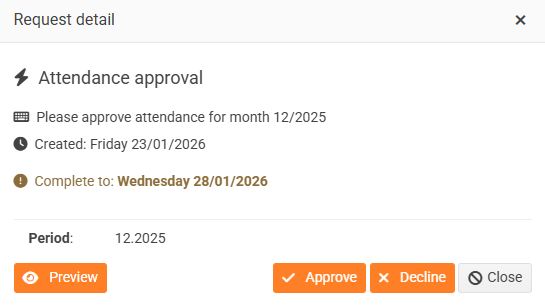
If the attendance matches the facts, they approve it by clicking the Approve button.
If they find errors in the attendance, he rejects the attendance by clicking the Decline button.
When rejecting, they must include a comment in which we recommend stating the discrepancies found.
Approving attendance for a terminated employee
If a terminated employee has generated attendance, they cannot approve it themselves because they no longer have access to the system. In this case, the attendance can be approved by an admin or HR admin.
How to proceed:
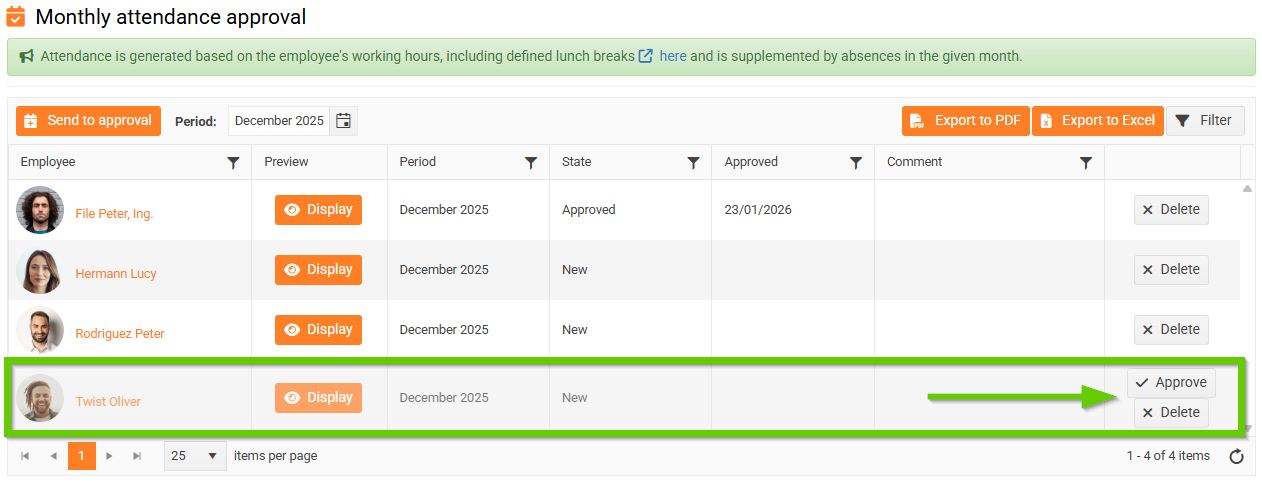
- Open the Monthly attendance approval report.
- For the selected terminated employee, click the Approve button.
- A warning will appear. You can add a comment here if necessary (optional).
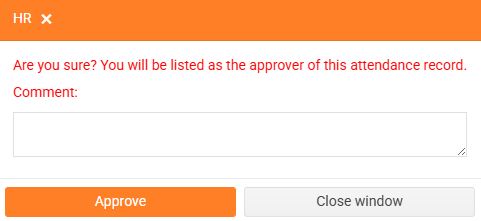
- Click the Approve button.
