Attendance and permissions configuration

Attendance configuration
In order for attendance to be generated correctly, you first need to configure working hours, lunch breaks, and shift starts.
You do this in the main system settings > Configuration > Working hours.
1. Setting the default data
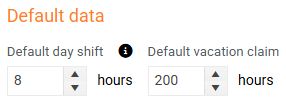
Here you set the default number of hours for the day shift and for vacation entitlement.
2. Setting lunch breaks
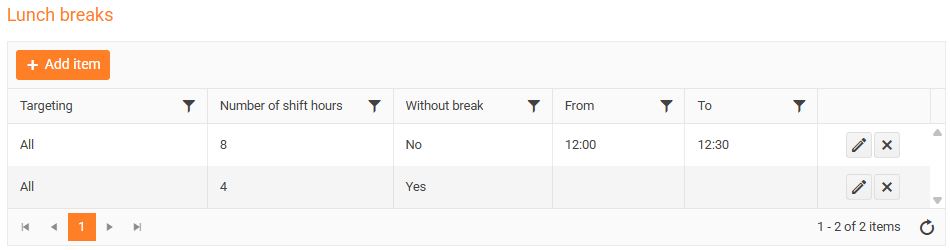
Enter a lunch break. You can have the same break defined for all employees or you can set the duration of the lunch break at a different time for different groups of employees - see the example in the image for Prague and Brno.
Procedure for entering a lunch break:
- Select Targeting, i.e. for which employees the break will apply - for example, for a specific department, some job positions or for the entire company.
- Determine for how many hours of working time the break will be applied - by default it will be 8 hours.
- Enter the duration of the pause From - To. When you enter the From time, the pause is automatically set to 30 minutes, of course you can adjust its duration to any length.
- Save the pause by clicking the Save button.
3. Setting Starts of shifts
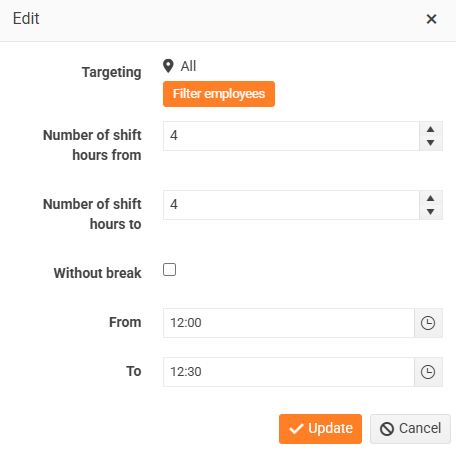
You can set different shift starts for different groups of employees.
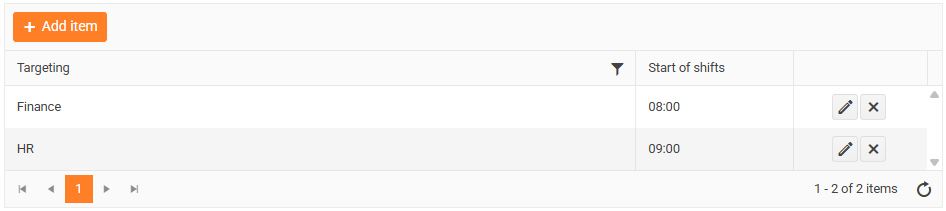
Procedure for entering a start of shift.
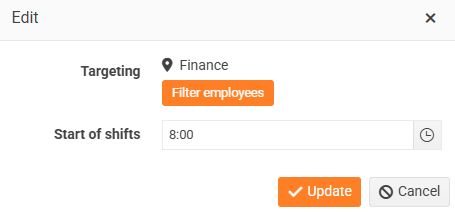
- Select Targeting, i.e. for which employees the start of the shift will apply - for example, for a certain department or some job positions.
- Determine for how many hours of working time the shift start will be applied.
- Save the start of the shift by clicking the Save, or in some cases the Update button.
Authorization for closing (approving) monthly attendance
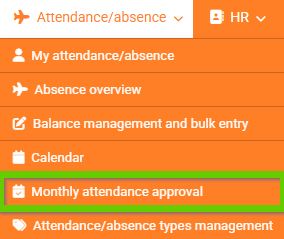
Employees who should have access to the menu to close monthly attendance must have Monthly attendance approval enabled in Settings > Access levels > Permissions:

With this permission, the Monthly attendance approval link is then visible to them in the Attendance/absence menu in the main navigation bar.