Managing onboarding profiles

To manage onboarding profiles, in the main menu tab click on HR > Onboarding.
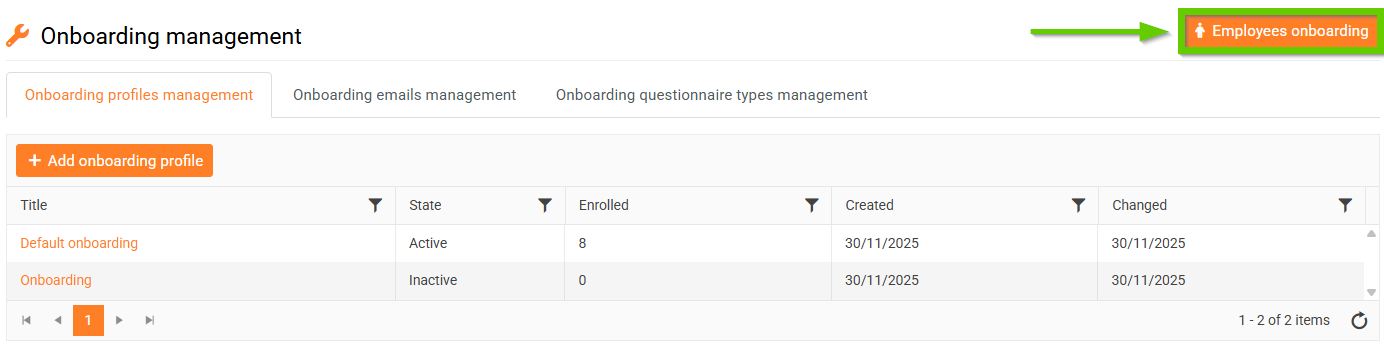
Then click on Onboarding management in the top right corner.

Afterwards, select Onboarding profiles management.
1. Adding a new onboarding profile
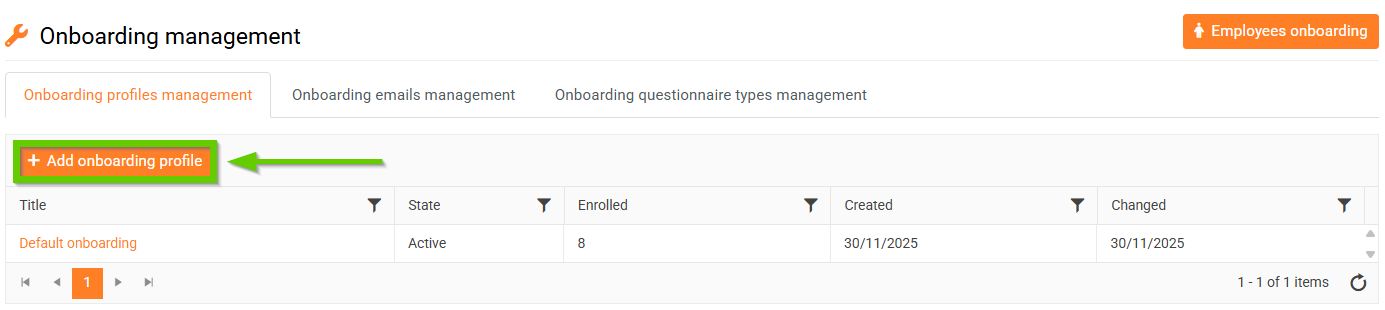
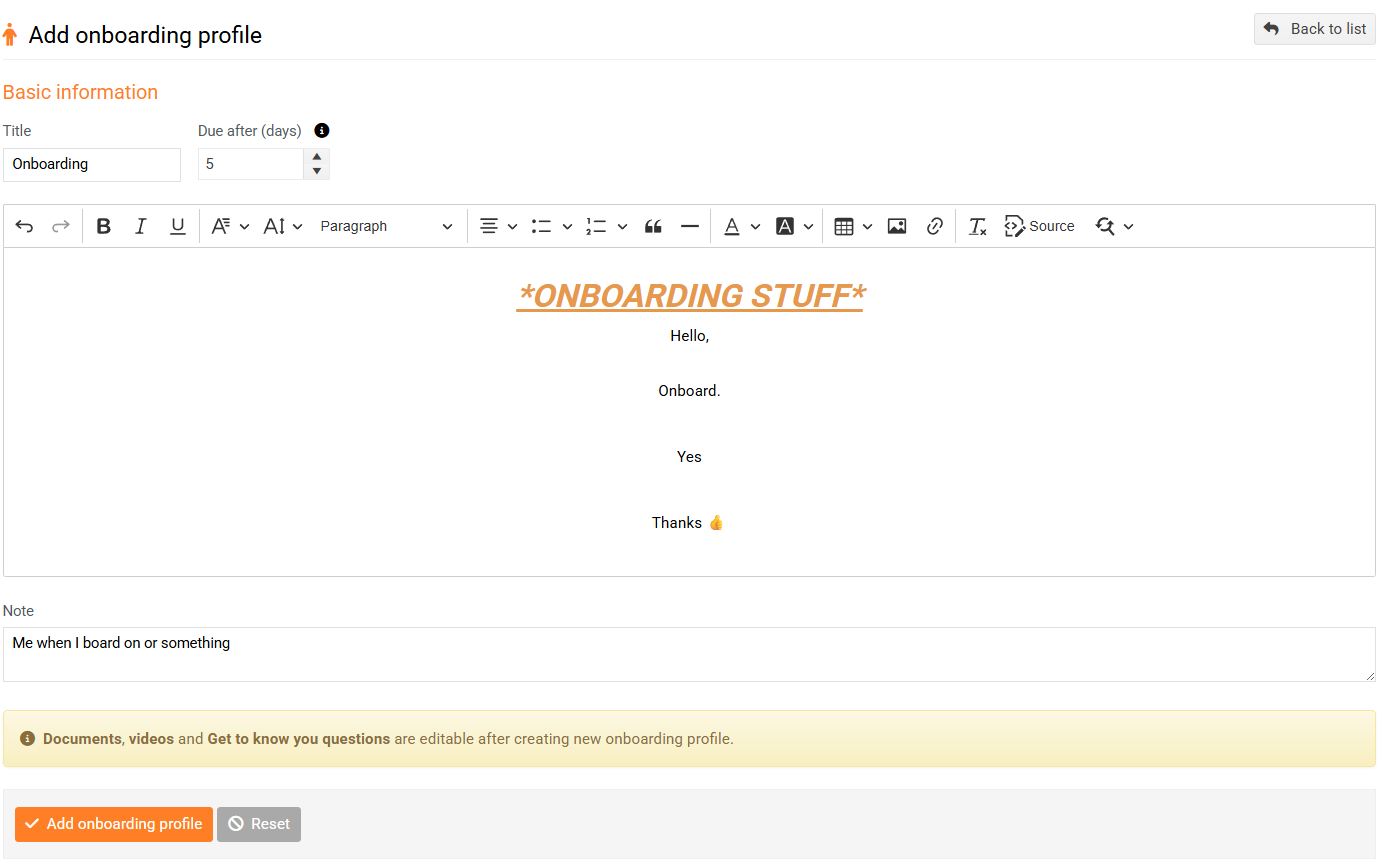
To add a new onboarding profile (welcome page), click the Add onboarding profile button on the Onboarding management profiles tab and, after filling in the relevant fields, save the page by clicking the button of the same name.
After saving, you can add:
- documents that the employee should familiarize themselves with (1)
- questions to fill in (2)
- contacts (3)
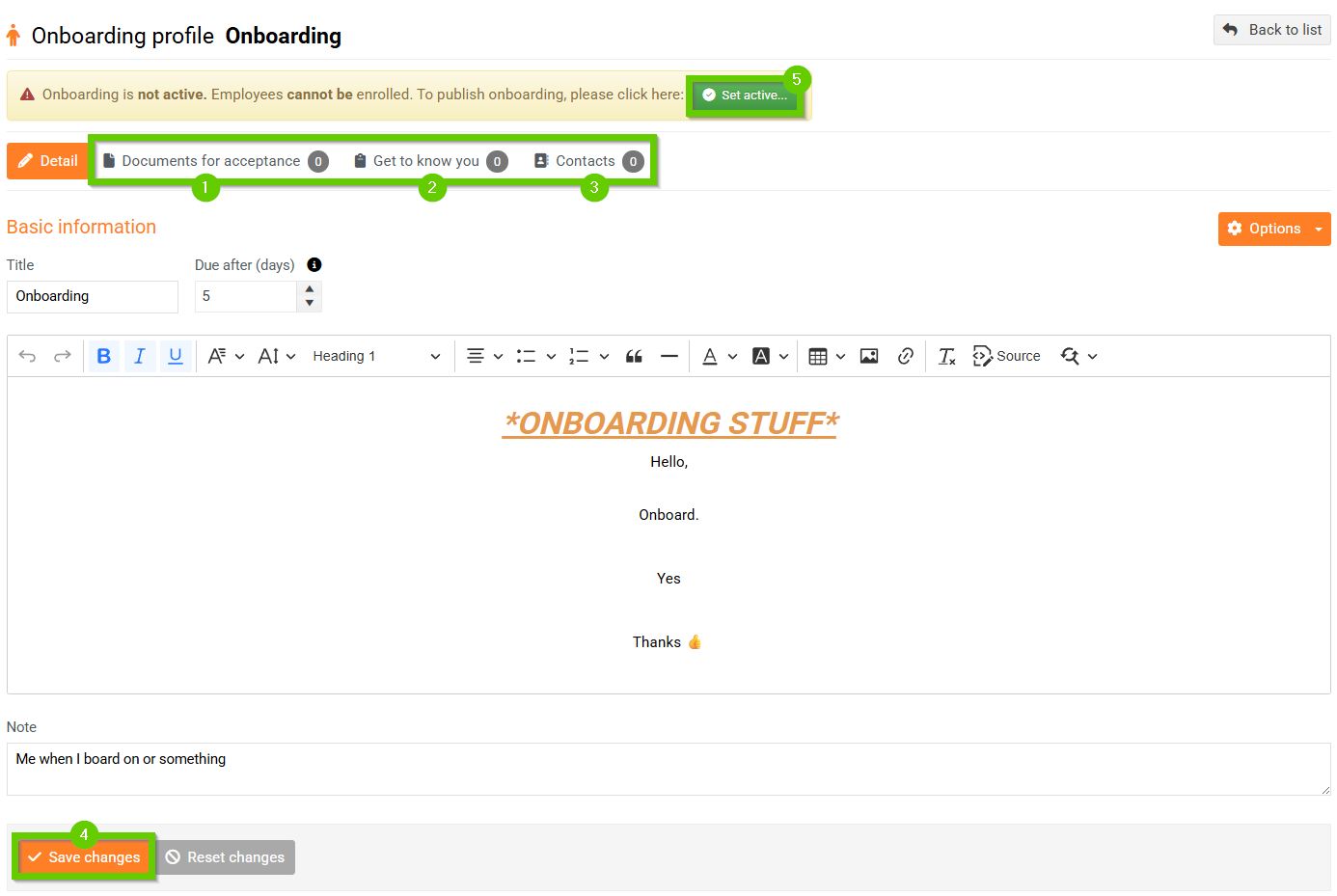
Don't forget to save the changes (4) and activate the entry (5).
Click the Back to list button to return to the list of created entry profiles.
2. Editing and deleting an entry profile
Already created entry profiles can be edited by clicking on their name.
Details tab
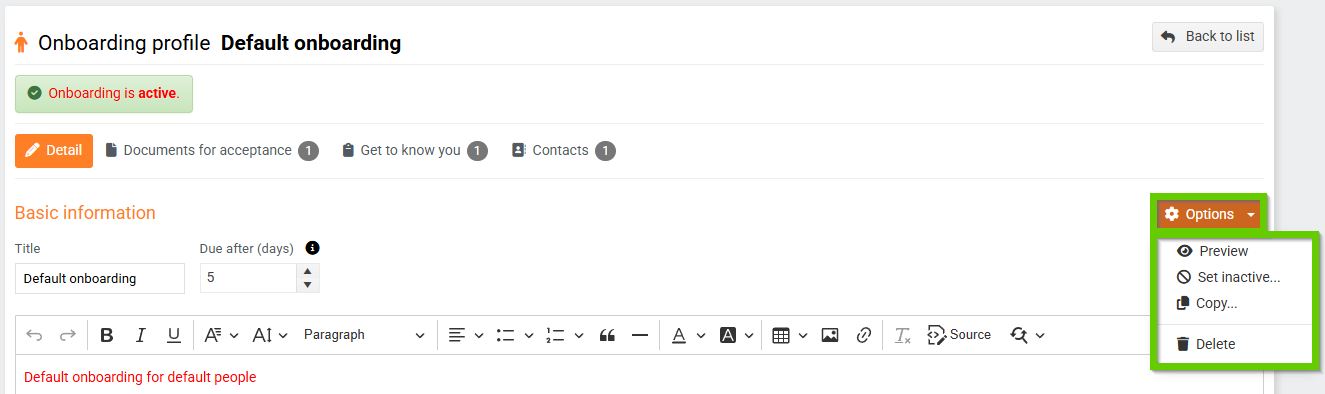
For an already created entry profile, the Options button is displayed in the Detail tab.
After clicking on it, you have the choice:
- Preview - shows how the welcome page will look like
- Set inactive - after clicking the set inactive option, the given onboarding will be closed, employees will no longer be able to sign up and the onboarding will not be able to be reactivated
- Copy - allows you to copy the entire entry or only selected parts
- Delete - the entry will be deleted and all data will be lost
Documents for review tab
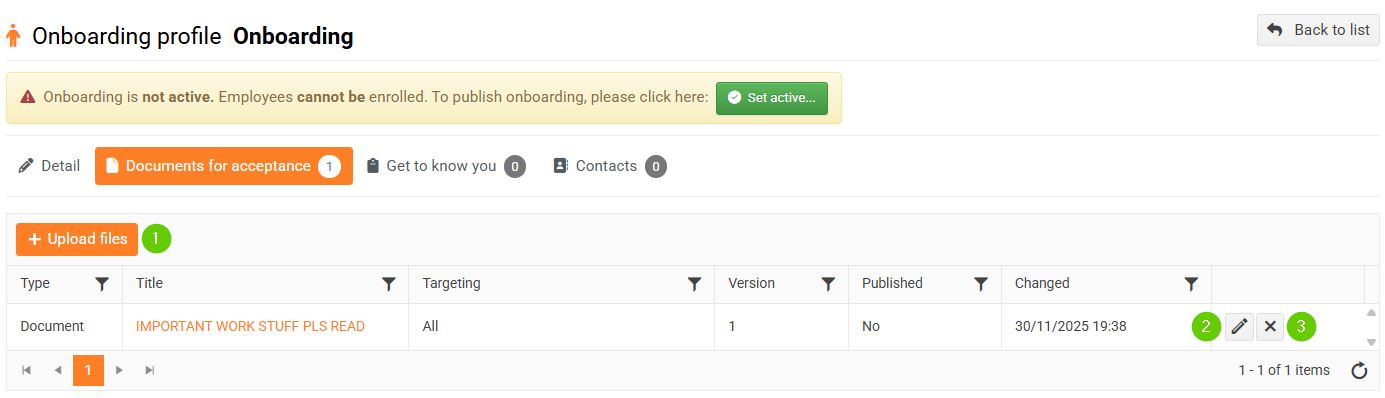
You can enter inactive mode:
- add a document - by clicking the Upload files button (1) you can add additional documents
- edit document - by clicking on the pencil icon (2), you can edit the name and targeting of the added document
- delete document - click on the cross icon (3) to delete the selected document
Questions About You tab
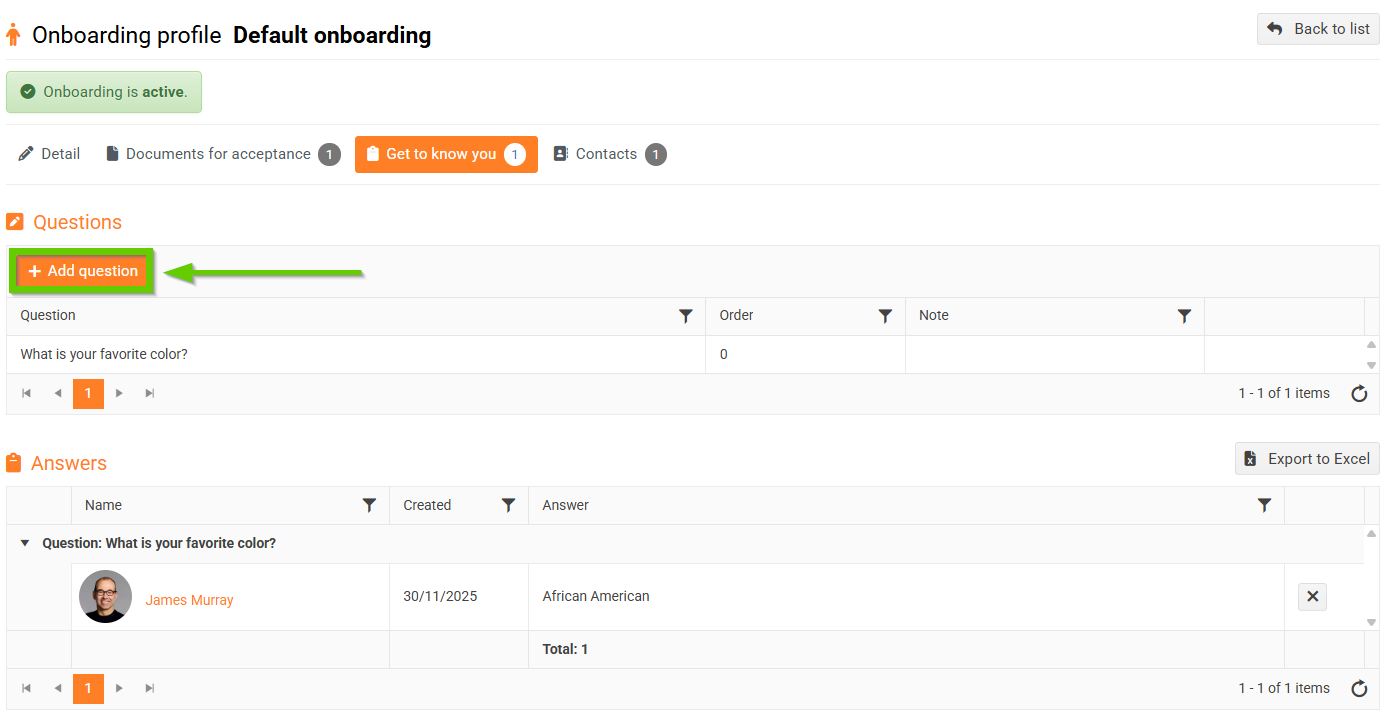
In an inactive session, you can add, edit, and delete questions as you wish.
You can start actively:
- add a question (1) - newly added questions are not shown to previously registered employees who have already answered all the questions.
- edit the question text (2) - only possible if no one has answered this question yet. Previously registered employees will see the updated question text.
- delete question (3) - only possible if no one has answered this question yet. The question will no longer be displayed to previously registered employees.
Contacts tab
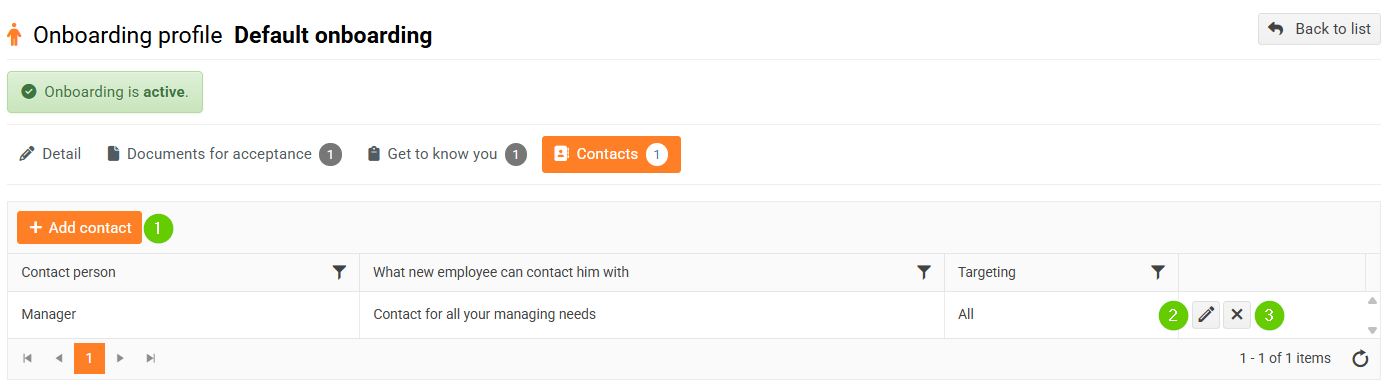
You can enter both active and inactive mode:
- add contact - by clicking the Add contact button (1) you can add another contact
- edit contact - by clicking on the pencil icon (2) you can edit the contact person, targeting, etc.
- delete contact - click on the cross icon (3) to delete the selected contact
By clicking the Employee onboarding button, you will return from the list of created onboarding profiles to the Onboarding overview tab.