Goal correction – Ongoing Phase

During the ongoing phase, there may be a need to redefine goals.
For example, you may want to add/remove a goal, adjust goal weights, etc.
In this case, a manager, administrator, or HR administrator can start the Goal correction process.
Starting the goal correction process - manager
- Open the subordinate's rating (from the Evaluations tab on the worker's profile).
- Click the Change state button.

- In the opened form, select the status: Ongoing - In progress by employee (Correction of goals).
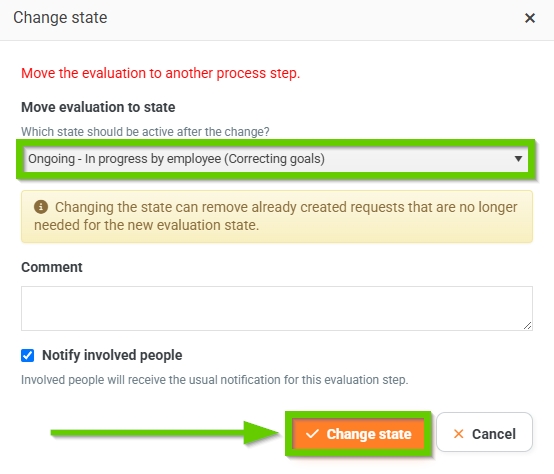
- Save using the Change state button.
- After starting the correction process, the goals will be available for editing again for the employee. The evaluation will now have the status Filled in by employee.
- Wait for your subordinate to correct the goals and resubmit the evaluation for approval. You will be notified again by email and a request to confirm the evaluation.
- Proceed as for approving the evaluation in the initial phase, see Manager approval of evaluation – Initial Phase.
Correction of goals by worker
- If your manager has initiated the Goal Revision process, you will receive an email notification and a request in the system asking you to complete an evaluation. Both display a comment justifying the goal revision.
- Open your review.
- The original goals are "preserved" at the bottom of the form; they cannot be edited.
- Above them, the original goals are copied, this time in edit mode. By clicking the Edit button for the selected goal, you can make changes or delete it. At the same time, new goals can be added - the Add goal button.
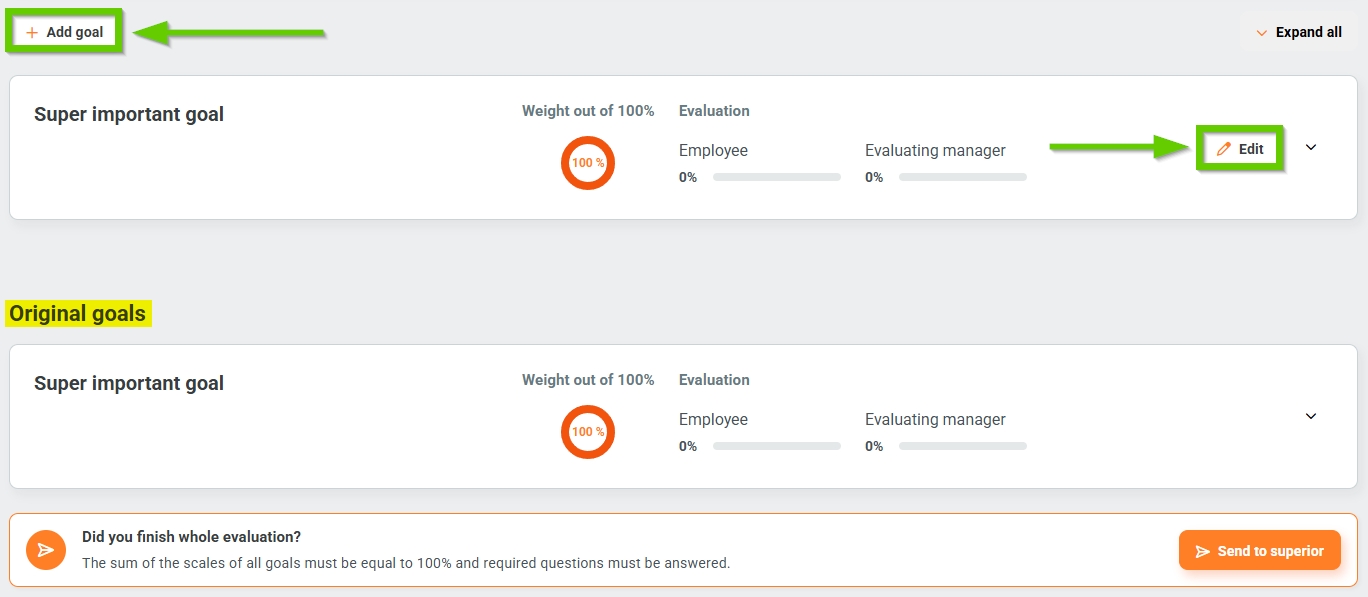
- Review your goals based on your manager's comments and adjust them. Proceed similarly to filling in goals for a new evaluation in the initial phase, see Filling in an Employee completion of evaluation - Initial Phase.
- You can add a comment.
- Click the Send to manager button to resubmit the corrected evaluation for approval.
- When sending, it is checked again, here the sum of the weights of the objectives is equal to 100% and whether all mandatory questions are answered. If any part is not filled in, the system will warn of the deficiency and mark the missing part with an exclamation mark icon on the relevant tab.
- After sending it to your manager for approval, the evaluation status is again Filled by Manager.
Approval of revised goals by manager
- If your subordinate has submitted an evaluation with revised goals for approval, you will receive an email notification and a request in the system asking you to confirm the evaluation.
- Proceed similarly to approving the evaluation in the initial phase, see Manager approval of evaluation – Initial Phase.
- The result of the approval will be a rating in the Ongoing phase with a status of Approved.
