Applicant management

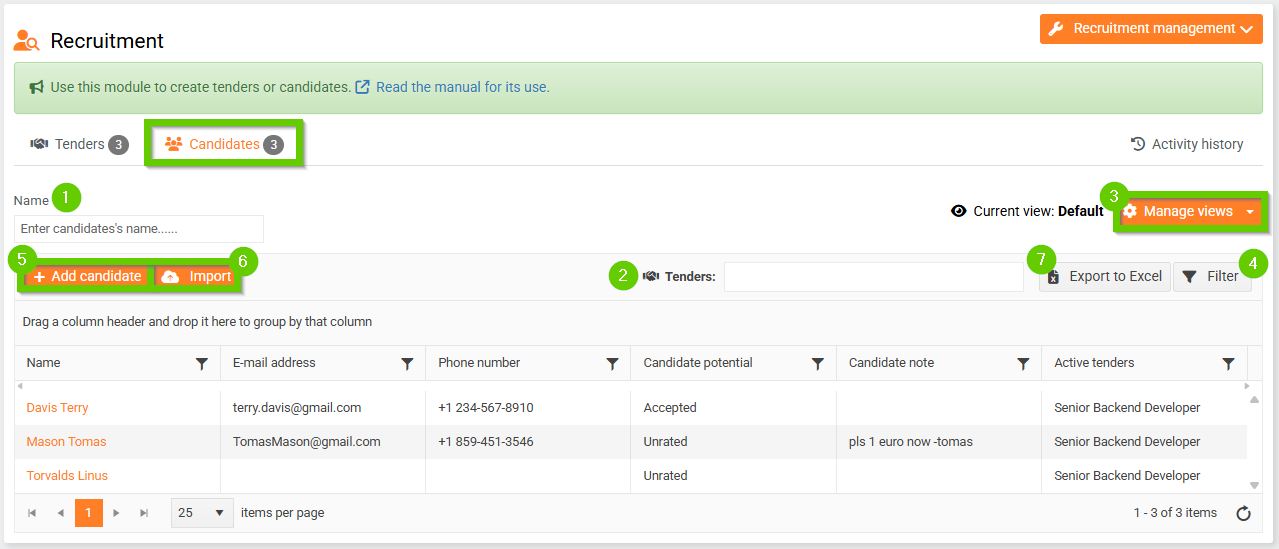
To manage applicants, go to the tab on the main panel
HR > Recruitment > Candidates.
General information
The candidates are listed alphabetically. There are several options to filter out only the desired records from all candidates:
- by the applicant's name
- according to the tender
- using views
- using the filter button
You can add a new applicant by clicking the Add candidate button (5). For detailed instructions, see the article Adding a new candidate.
You can import multiple candidates at once by clicking the Import button (6). The list of candidates can also be exported to Excel (7).
Managing the selected candidate
After adding a candidate, additional tabs will appear:
- Detail
- Activities
- Requests
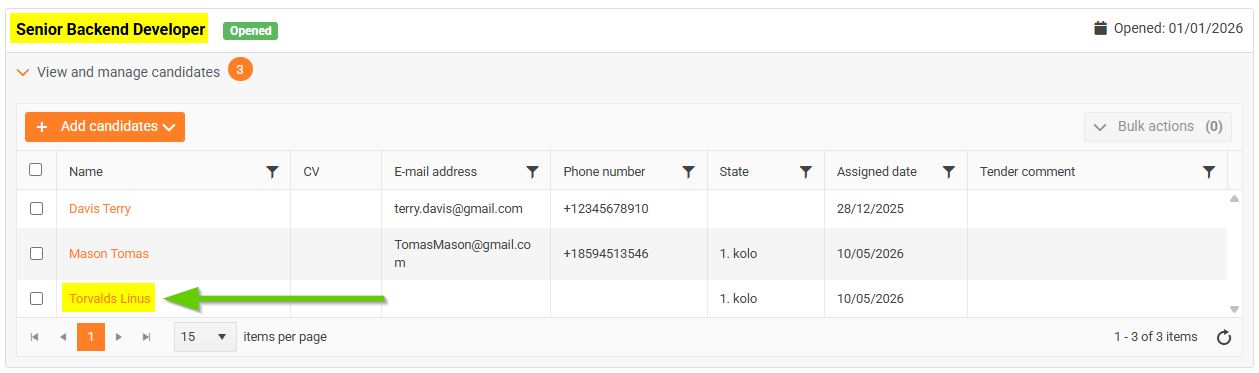
You can also go to the applicant's card by clicking on the name of the selected applicant:
- from the list of applicants on the Applicants tab
- from the list of candidates assigned to a specific tender on the Tenders tab
1. Detail
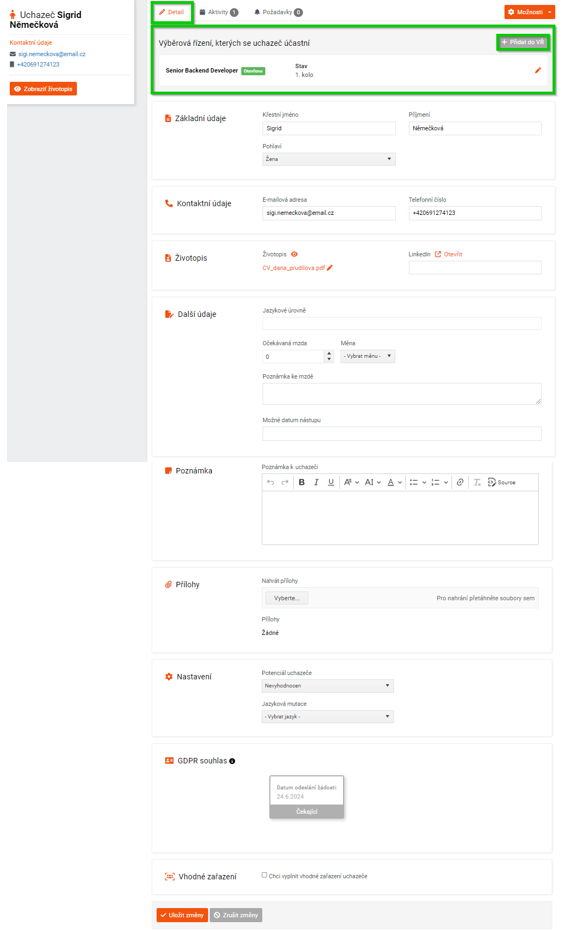
The Detail tab displays the basic information about the applicant that you filled in when creating it. You can add or change the information here at any time.
If the applicant is participating in the tender, their name is displayed here, their status, and you can add a note using the pencil icon.
By clicking the Add to tender button, you can add the candidate to the next selection process.
2. Activity history
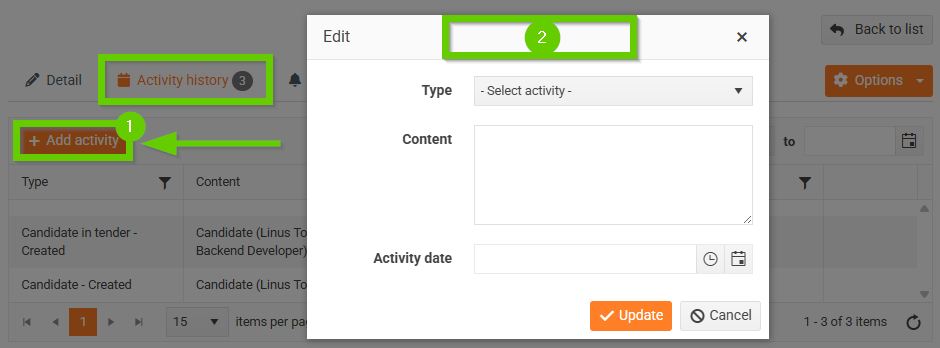
The Activity history tab records activities that have taken place in connection with the selected applicant. They are added automatically by the system (e.g. when the applicant was created), or you can add an activity manually by clicking the Add activity button. A window will open where you can select the Activity type and enter the Content. These fields are mandatory. You can also enter the date of the activity.
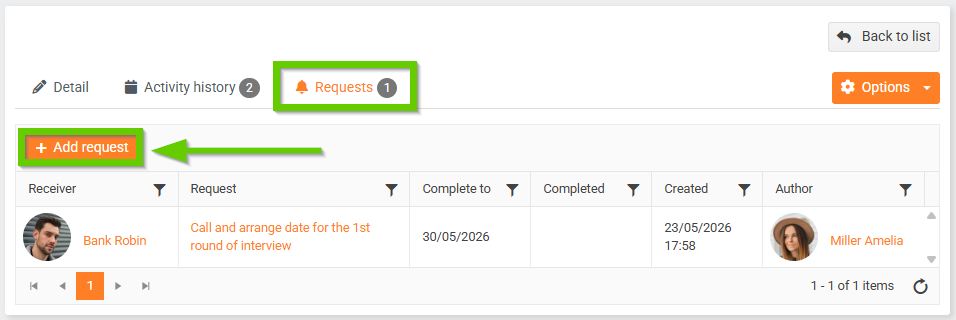
3. Requests
Through the Requests tab, you can specify requests for your colleagues regarding a given candidate.