Using the module

- Open Balance and attendance/absence types management.
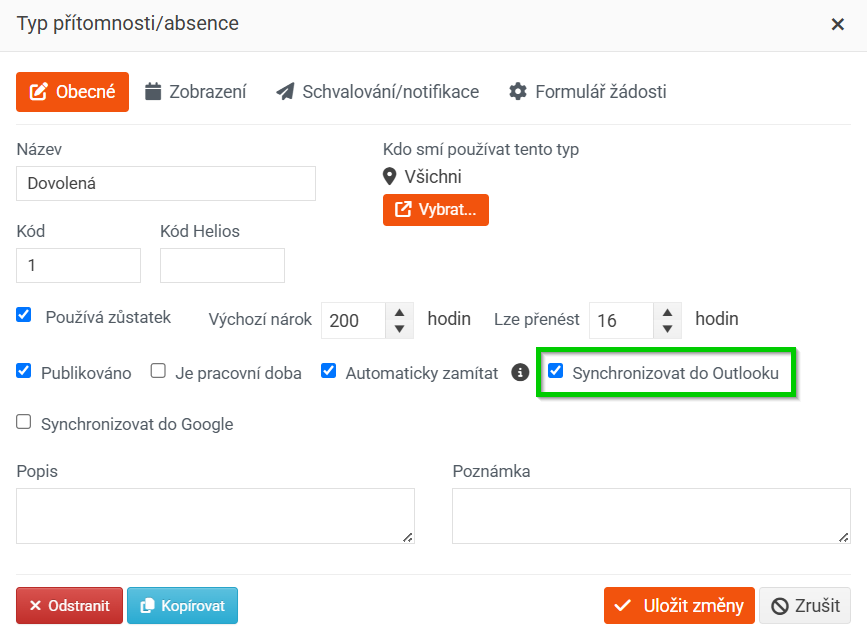
- Select the type of absence you want to sync with Outlook.
- Check the Sync to Outlook box.
- For absences marked in this way, the Auto-reply content field will appear on the absence request, which the user may or may not fill out.
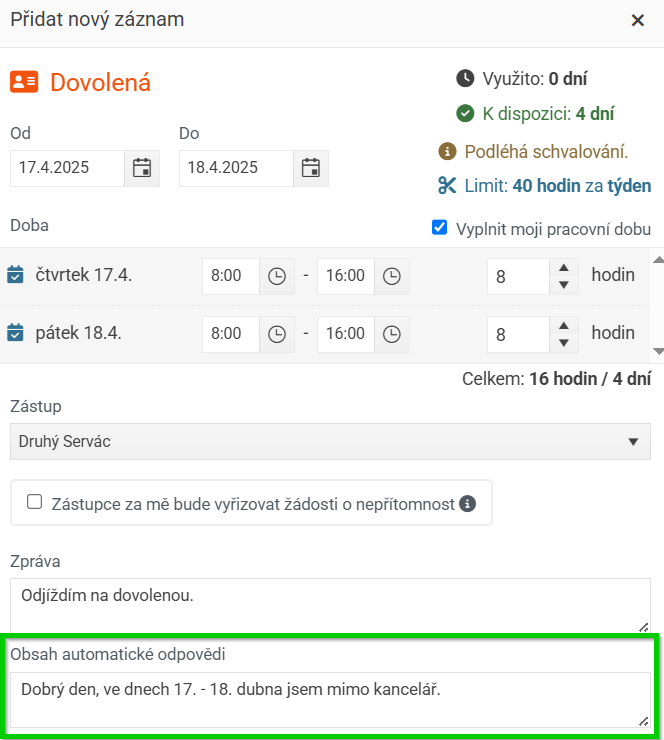
- Approved absences entered in this way are entered into the employee's Outlook calendar at the moment of approval (on-demand).
- Any changes or cancellations of absence in PINYA HR are also reflected (on-demand) in Outlook, i.e. the absence is changed or canceled here.
- Any changes in Outlook entered by the PINYA system are not retroactively entered into PINYA - i.e. if an employee deletes a vacation in the Outlook calendar, they must also delete it in PINYA.
- The automatic response is set in Outlook only on the first day of the event, using the synchronizer.
- The user profile is matched to their Outlook calendar via the username in PINYA (work email) and the user principal name in AD (also work email).
- For error detection purposes, every attempt to connect to AZURE is recorded in the activity log.
